Default VS2012 C++/Cli project framework version is v4.0. Here are the steps to compile DLL to downgrade C++/Cli framework version to v2.0.
- Install VS2008 and VS2010
- Create a CLR project named "Hello" for example
- Right click "Hello" project and select "Unload Project"
- Right click "Hello(unavailable)" and select "Edit Hello.vcxproj"
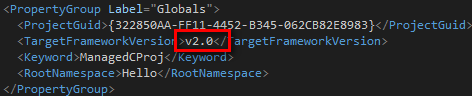
- Change TargetFramewrokVersion from "v4.0" to "v2.0"
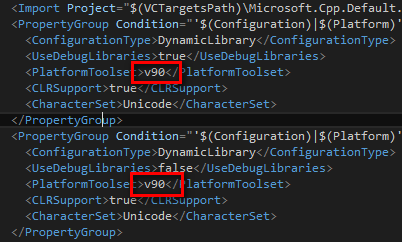
- Change PlatformToolset tag from "V110" to "v90"
- Save and close project file
- Right click "Hello(unavailable)" and select "Reload project". The project title will be changed as

- Change version number in "AssemblyInfo". Using default "1.0.*" will cause error when use function in DLL.

- Rebuild project and enjoy the DLL in .netframework2.0
- Pay attention that when reference this DLL in .netframework4.0 project, you have to set useLegacyV2RuntimeActivationPolicy="true" in startup tag in app.config as