Azure Blob 儲存體是 Microsoft 針對雲端推出的物件儲存體解決方案。 Blob 儲存體已針對儲存大量非結構化資料最佳化。
Blob 儲存體設計用來:
- 直接提供映像或文件給瀏覽器。
- 儲存檔案供分散式存取。
- 串流傳輸視訊和音訊。
- 寫入記錄檔。
- 儲存備份和還原、災害復原和封存資料。
- 儲存資料供內部部署或 Azure 託管服務進行分析。
本文章紀錄如何創建一個 Blob Storage 並運用其為圖床使用。
建立儲存體帳戶
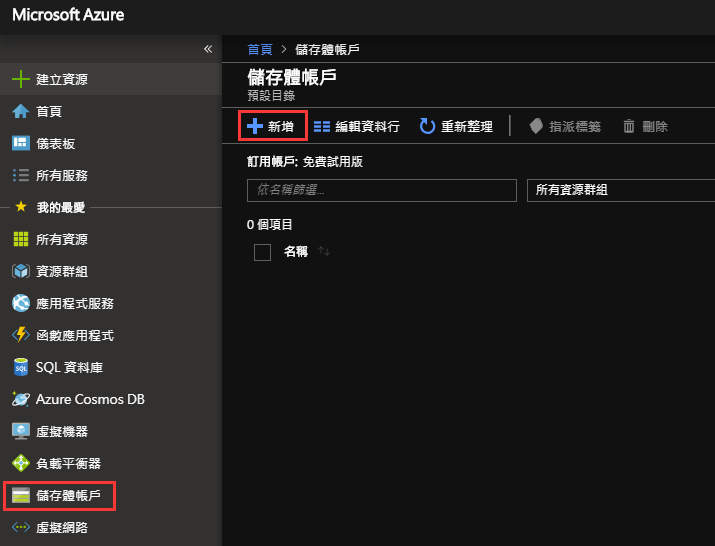
1. 登入 Azure 後選擇左側儲存體帳戶並點選新增。
2. 輸入儲存體帳戶相關資訊。
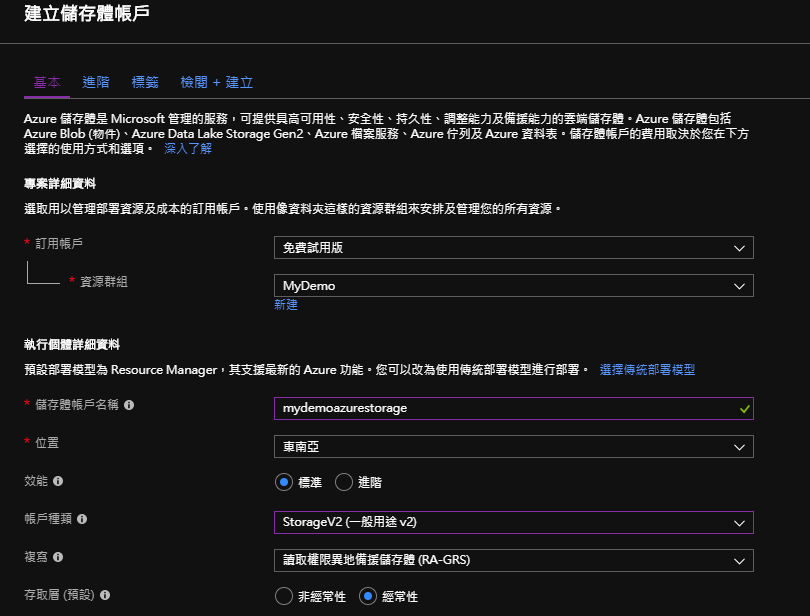
- 儲存體帳戶名稱:
輸入你自訂的儲存體帳戶名稱。注意英文部分只能允許小寫字母。 - 位置:
選擇儲存體伺服器所在位置。這裡我選擇的是東南亞。 - 效能:
依照需求選擇。因為是測試用,使用標準即可。 - 帳戶種類:
使用預設的StorageV2(一般用途 v2),詳細的比較可以參考官方說明。 - 複寫:
這裡我們先用預設的讀取權限異地備援儲存體 (RA-GRS),實務上的需求可以參考官方說明。(話說預設的這個是最貴的...) - 存取層:
這裡我們選擇的是經常性。如果實際需求是久久才使用一次的檔案,如:Log。可以選擇非經常性。
3. 點選下方檢閱 + 建立移至檢閱+建立畫面並選擇建立以完成儲存體帳戶的建立。
建立 Blob 服務
在新增 Blob 服務前,我們先看一下下圖畫面了解儲存體帳戶與 Blob 容器的關係(官方說明)。
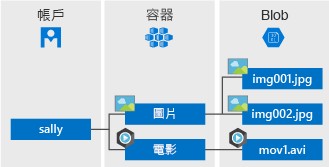
儲存體帳戶可以包含無限數量的容器,而一個容器則可儲存無限數量的 Blob。
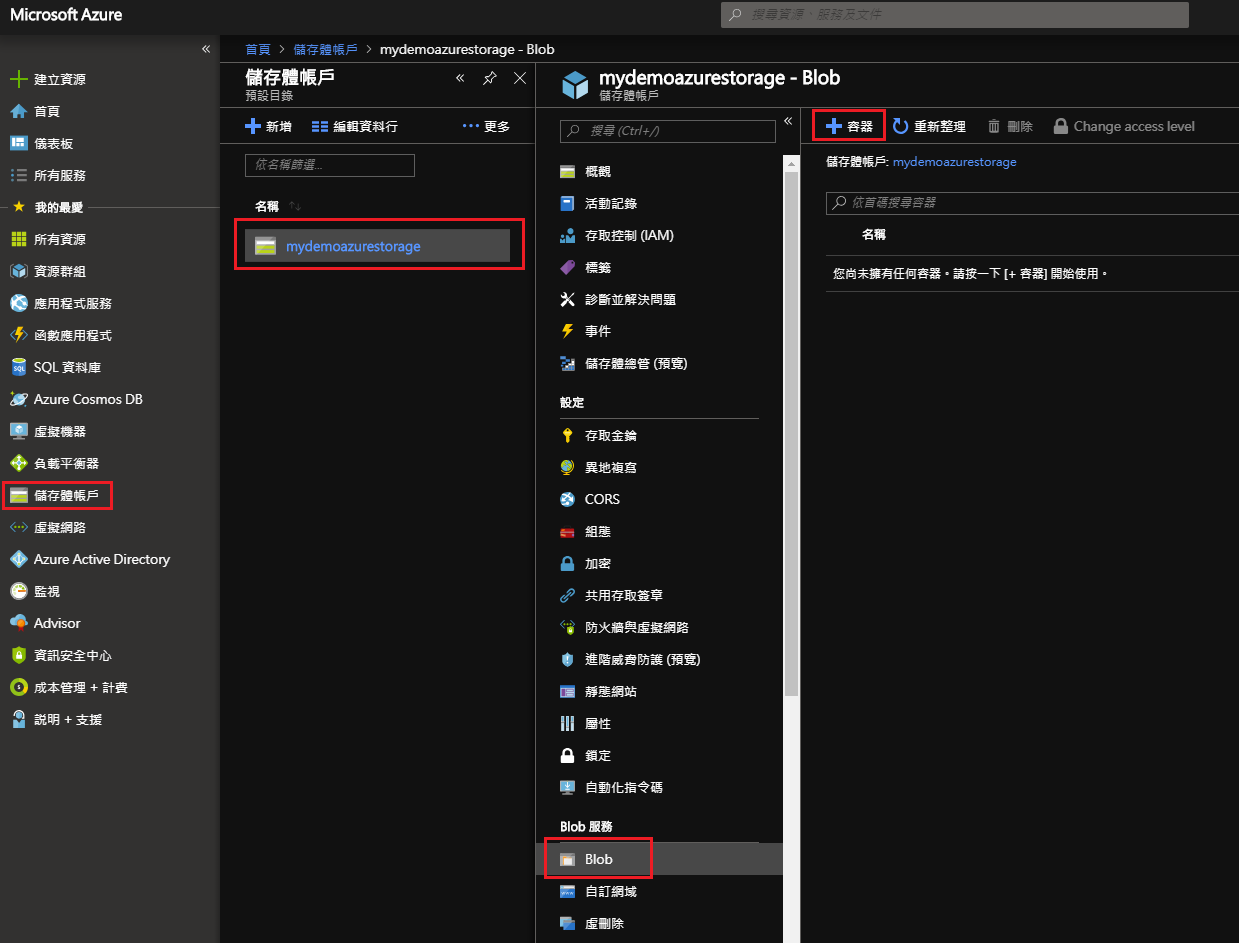
1. 於左側欄點選儲存體帳戶並選擇我們剛剛新增的帳戶。於新視窗中選擇Blob並新增容器。
2. 輸入容器名稱及選擇公用存取層級。
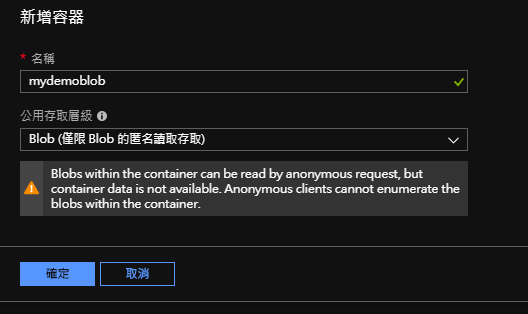
- 名稱:自訂容器名稱。注意英文部分只能允許小寫字母。
- 公用存取層級:指定容器中的資料是否公開存取。
私人:預設值。僅帳戶擁有者能存取。
Blob:允許公開讀取權限。(依據範例需求我們選這個選項)
容器:允許整個容器的公開讀取與清單存取權限。
3. 點選確定以完成容器新增。
整合至專案中
1. 開啟範例程式碼中的 DemoAzureBlob 專案。
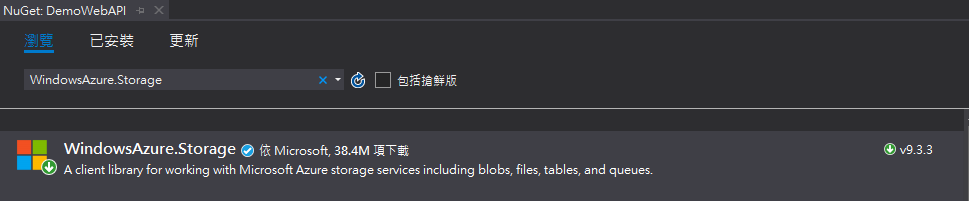
2. 於 NuGet 上安裝WindowsAzure.Storage這個套件。
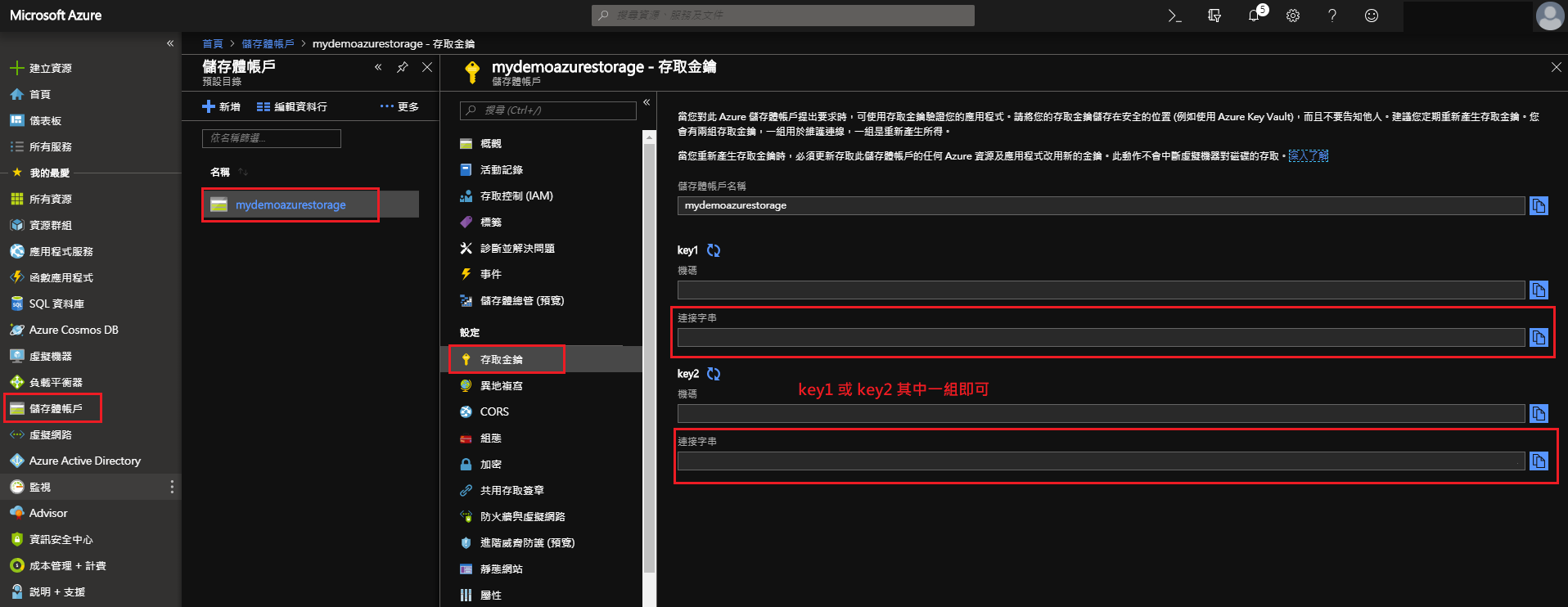
3. 取得儲存體連接字串。
4. 新增一個StorageHelper.cs並添加以下的程式碼。
記得將「連接字串」取代為你個人的連接字串。
using System.IO;
using Microsoft.WindowsAzure.Storage;

namespace DemoAzureBlob.Helpers
{
    /// <summary>
    /// StorageHelper
    /// </summary>
    public class StorageHelper
    {
        /// <summary>
        /// 連接字串
        /// </summary>
        private readonly string connectionString = "{連接字串}";

        /// <summary>
        /// Uploads the file.
        /// </summary>
        /// <param name="containerName">容器名稱</param>
        /// <param name="fileName">檔案名稱</param>
        /// <param name="stream">檔案</param>
        /// <returns>
        /// 檔案位置
        /// </returns>
        public string UploadFile(string containerName, string fileName, Stream stream)
        {
            // Retrieve storage account from connection string.
            var storageAccount = CloudStorageAccount.Parse(this.connectionString);

            // Create the blob client.
            var blobClient = storageAccount.CreateCloudBlobClient();

            // Retrieve reference to a previously created container.
            var container = blobClient.GetContainerReference(containerName);

            // Retrieve reference to a blob named {fileName}.
            var blockBlob = container.GetBlockBlobReference(fileName);

            // Create or overwrite the {fileName} blob with contents from a stream.
            blockBlob.UploadFromStream(stream);

            return blockBlob.Uri.AbsoluteUri;
        }

        /// <summary>
        /// Deletes the file.
        /// </summary>
        /// <param name="containerName">容器名稱</param>
        /// <param name="fileName">欲刪除檔案名稱</param>
        /// <returns>
        /// bool
        /// </returns>
        public bool DeleteFile(string containerName, string fileName)
        {
            // Retrieve storage account from connection string.
            CloudStorageAccount storageAccount = CloudStorageAccount.Parse(this.connectionString);

            // Create the blob client.
            var blobClient = storageAccount.CreateCloudBlobClient();

            // Retrieve reference to a previously created container.
            var container = blobClient.GetContainerReference(containerName);

            // Retrieve reference to a blob named {fileName}.
            var blockBlob = container.GetBlockBlobReference(fileName);

            // Delete the blob.
            if (blockBlob.Exists())
            {
                blockBlob.Delete();
                return true;
            }

            return false;
        }
    }
}
5. 將DemoController.cs中的程式碼修改成如下:
記得將「容器名稱」取代為你個人的容器名稱。
using System;
using System.Linq;
using System.Net;
using System.Net.Http;
using System.Threading.Tasks;
using System.Web.Http;
using System.Web.Http.Description;
using DemoAzureBlob.Helpers;

namespace DemoAzureBlob.Controllers
{
    /// <summary>
    /// DemoController
    /// </summary>
    /// <seealso cref="System.Web.Http.ApiController" />
    public class DemoController : ApiController
    {
        /// <summary>
        /// Uploads the image file.
        /// </summary>
        /// <returns>
        /// image url
        /// </returns>
        [HttpPost]
        [Route("image")]
        [ResponseType(typeof(string))]
        public async Task<IHttpActionResult> UploadImageFile()
        {
            if (this.Request.Content.IsMimeMultipartContent())
            {
                var provider = new MultipartMemoryStreamProvider();
                await Request.Content.ReadAsMultipartAsync(provider);
                var stream = await provider.Contents[0].ReadAsStreamAsync();
                var fileName = Guid.NewGuid().ToString("N");
                var fileExtension = provider.Contents[0]
                    .Headers
                    .ContentDisposition
                    .FileName
                    .Replace("\"", string.Empty)
                    .Split('.')
                    .LastOrDefault();
                fileName = string.IsNullOrWhiteSpace(fileExtension) ? fileName : $"{fileName}.{fileExtension}";
                var fileUri = new StorageHelper().UploadFile("{容器名稱}", fileName, stream);
                return this.Ok(fileUri);
            }
            else
            {
                throw new HttpResponseException(HttpStatusCode.UnsupportedMediaType);
            }
        }

        /// <summary>
        /// Deletes the image.
        /// </summary>
        /// <param name="fileName">欲刪除的檔案名稱</param>
        /// <returns>
        /// IHttpActionResult
        /// </returns>
        [HttpDelete]
        [Route("image")]
        [ResponseType(typeof(bool))]
        public IHttpActionResult DeleteImage([FromUri]string fileName)
        {
            return this.Ok(new StorageHelper().DeleteFile("{容器名稱}", fileName));
        }
    }
}
Blob 預設的行為會複寫掉相同的檔案名稱的檔案。上面的代碼我是每次都會重新賦予一個新的名稱。
6. 實際運行專案並驗證其結果。
