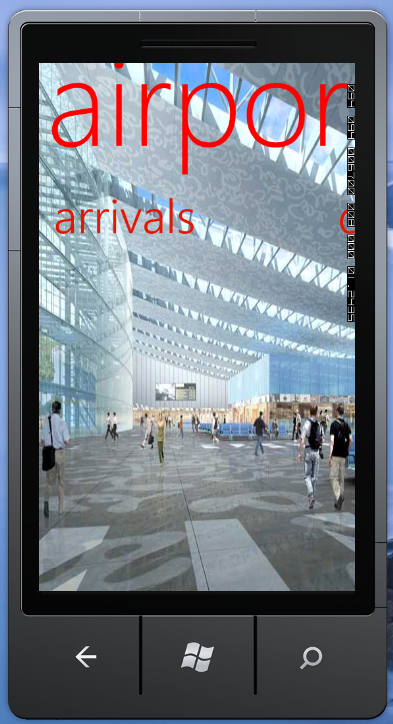
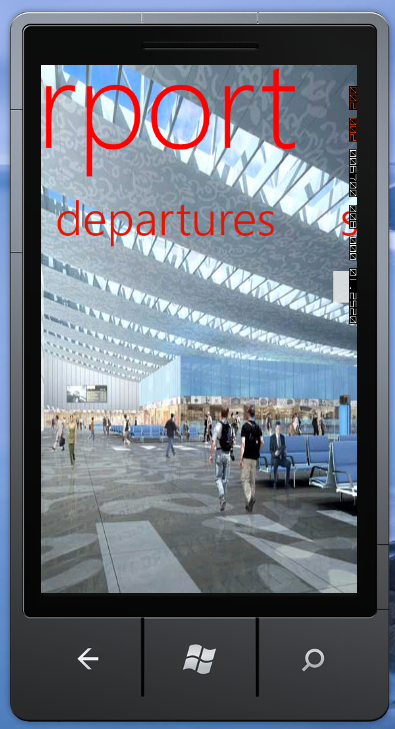
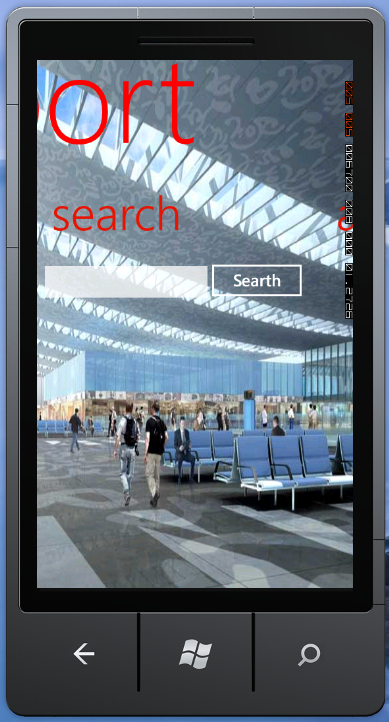
摘要:Panorama Controls
Panorama control, you can present the UI of an application on one horizontal canvas that extends beyond the left and right boundaries of the device screen and can be flicked to the left and right with touch gestures.
a Panorama is like a scroll.
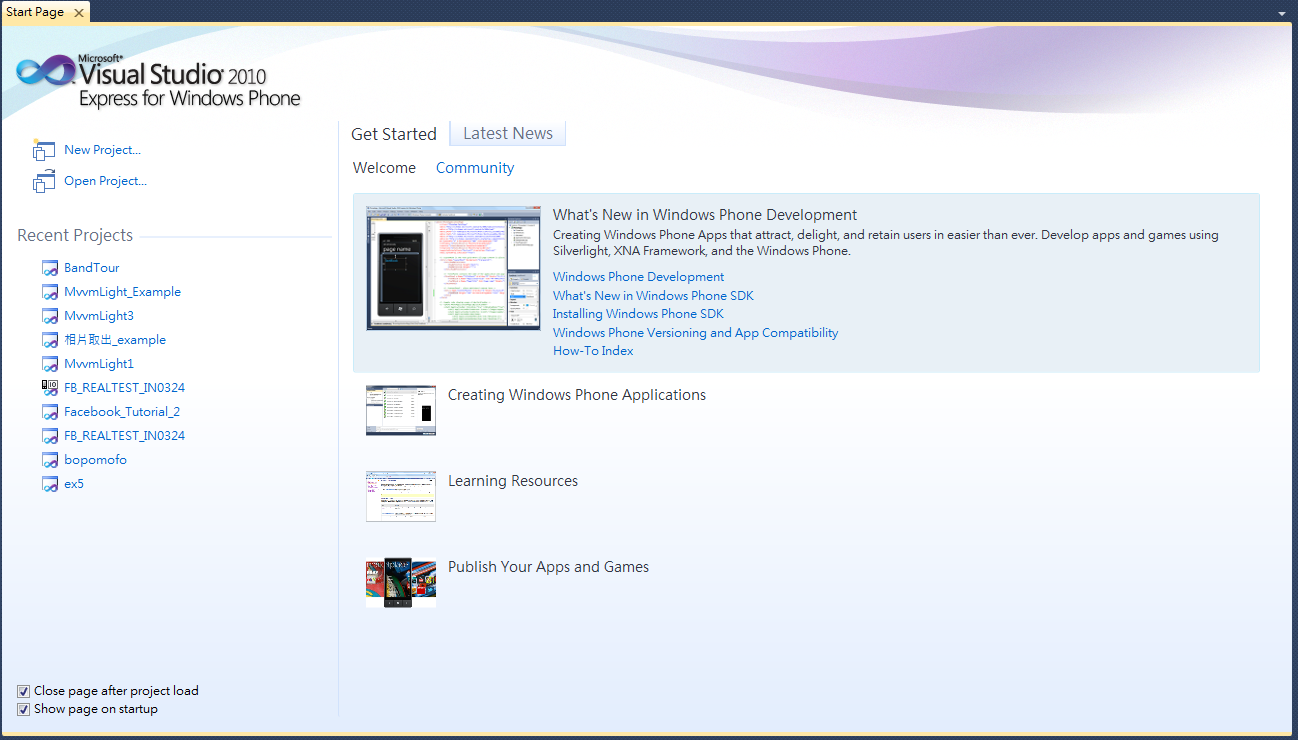
Step1 開啟Microsoft Visual Studio 2010 點選New Project
Step2 Search Installed Templates 選擇 Windows Phone Application
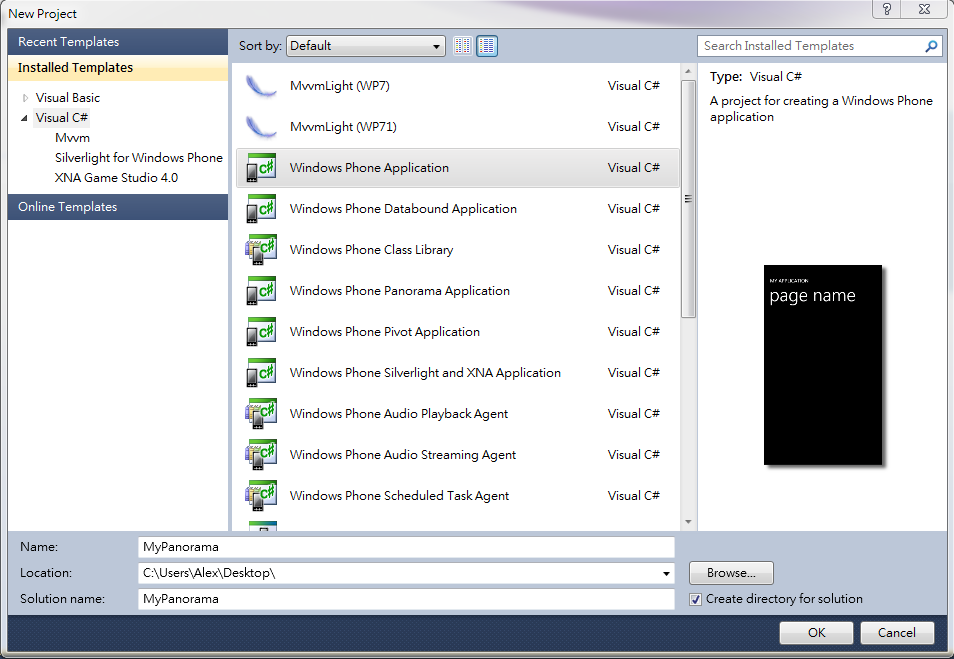
Step3 OS Version選擇Windows Phone OS 7.1
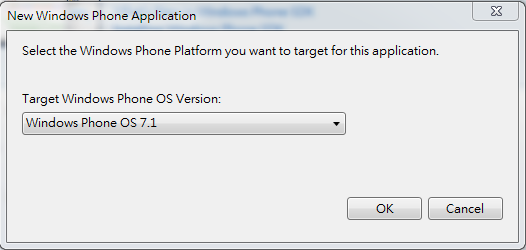
Step4 點選Solution Explorer 在專案名稱MyPanorama點選右鍵,Item→New Item
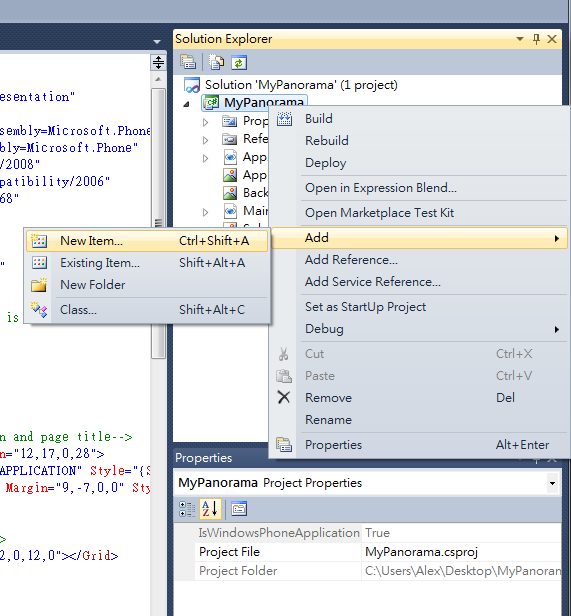
Step5 New Item選擇Windows Phone Panorama Page
Step6 把原本的MainPage.xaml重新命名為MainPage1.xaml
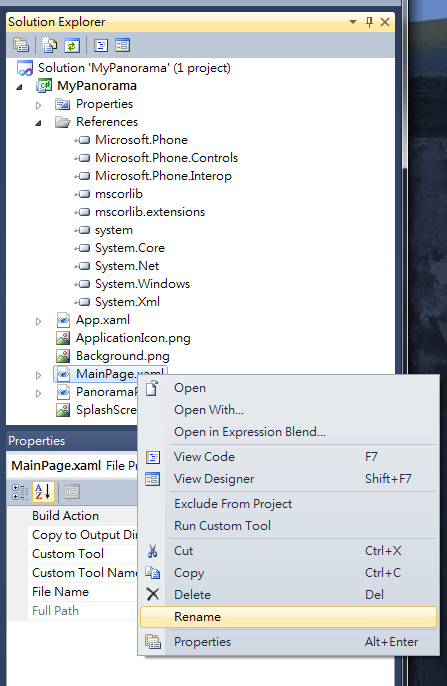
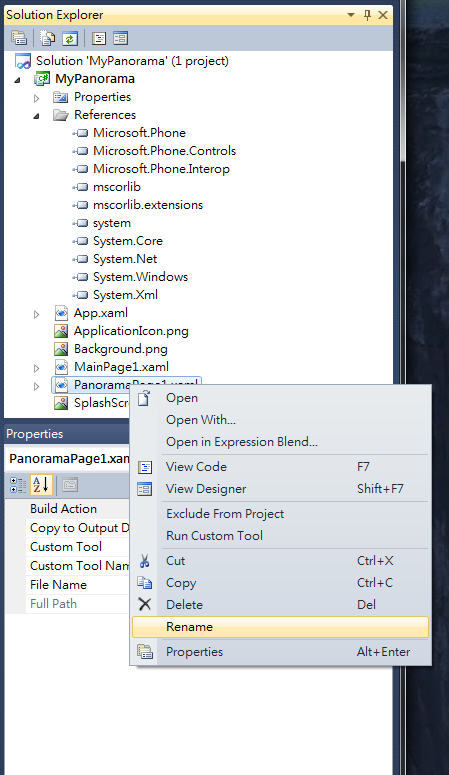
Step7 把原本的PanoramaPage1.xaml重新命名為MainPage.xaml ,經過step6和step7的設定,就能把PanoramaPage變成主頁
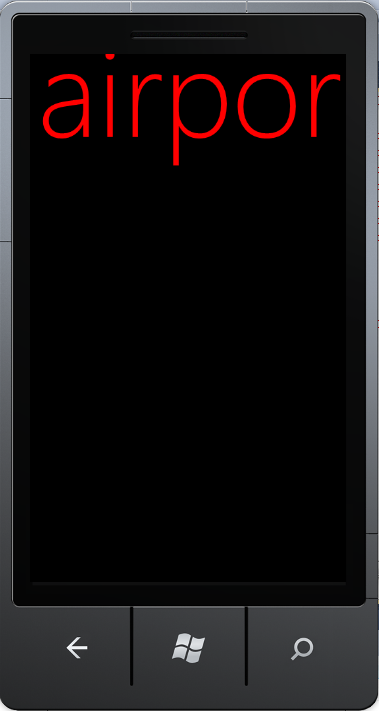
Step8 在MainPage.xaml撰寫以下程式碼,Panorama的標題是airport 前景顏色為紅色
 <Grid x:Name="LayoutRoot">
        <controls:Panorama Title="airport" Foreground="Red">


        </controls:Panorama>


    </Grid>
Step9 在MainPage.xaml新增PanoramaItem 分別是arrivals、departures、search
<!--Panorma item one-->
            <controls:PanoramaItem Header="arrivals" Foreground="{StaticResource PhoneAccentBrush}">
                <Grid>

                </Grid>
 </controls:PanoramaItem>


 <!--Panorma item two-->
            <controls:PanoramaItem Header="departures" Foreground="{StaticResource PhoneAccentBrush}">
                <Grid>

                </Grid>
 </controls:PanoramaItem>

 <!--Panorama item three-->
            <controls:PanoramaItem Header="search" Foreground="{StaticResource PhoneAccentBrush}">
                <Grid>
                    <TextBox Height="72" HorizontalAlignment="Left" Margin="-12,-2,0,0"
                             Name="textBox1" Text="" VerticalAlignment="Top" Width="271"/>
                    <Button Content="Searth" Height="72" HorizontalAlignment="Left" Margin="242,-4,0,0" Name="button1" VerticalAlignment="Top" Width="160" />
                </Grid>
</controls:PanoramaItem>
注意: use of Foreground="{StaticResource PhoneAccentBrush}” binding. It allows the foregroundcolor of the text to be the current theme’s accent color.
Step10 新增背景圖片到Panorama (直接拖曳到Solution Explorer)
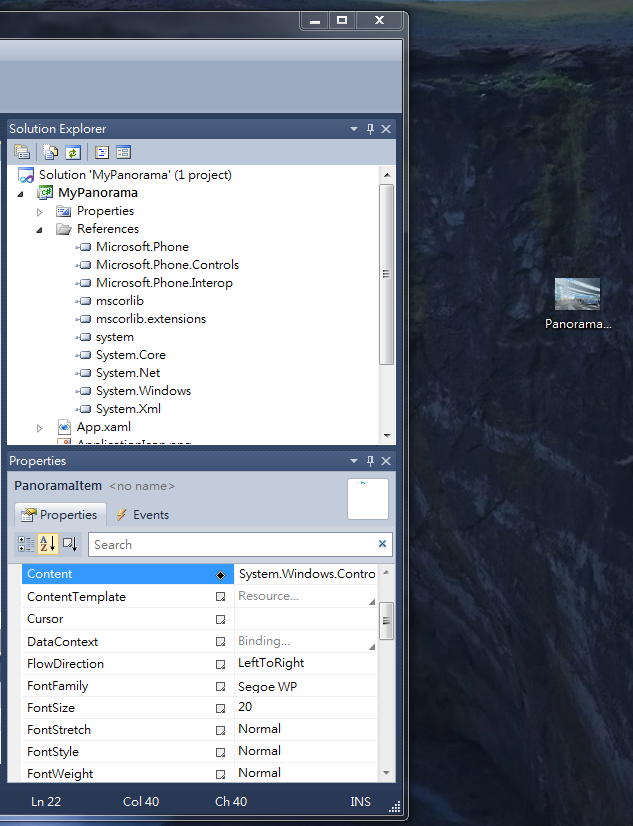
Step11 背景圖檔的屬性需有兩個地方更改
1.Build Action 要選擇Content 2.Copy to Output Directory 要選擇Copy always
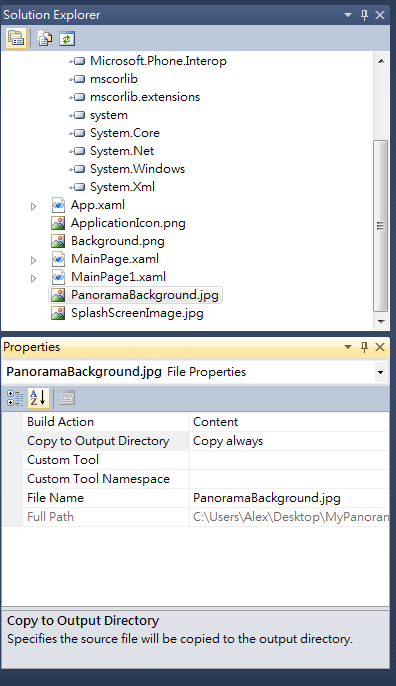
Step12 在MainPage.xaml撰寫以下程式碼 ,把圖檔匯入到Panorama的背景
 <controls:Panorama.Background>
                <ImageBrush ImageSource="PanoramaBackground.jpg"></ImageBrush>
            </controls:Panorama.Background>
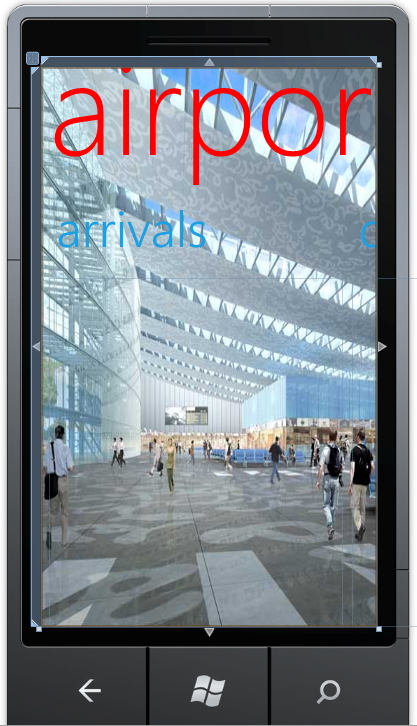
Step13 展示完全程式碼
<phone:PhoneApplicationPage
    x:Class="MyPanorama.PanoramaPage1"
    xmlns="http://schemas.microsoft.com/winfx/2006/xaml/presentation"
    xmlns:x="http://schemas.microsoft.com/winfx/2006/xaml"
    xmlns:phone="clr-namespace:Microsoft.Phone.Controls;assembly=Microsoft.Phone"
    xmlns:shell="clr-namespace:Microsoft.Phone.Shell;assembly=Microsoft.Phone"
    xmlns:controls="clr-namespace:Microsoft.Phone.Controls;assembly=Microsoft.Phone.Controls"
    xmlns:d="http://schemas.microsoft.com/expression/blend/2008"
    xmlns:mc="http://schemas.openxmlformats.org/markup-compatibility/2006"
    mc:Ignorable="d" d:DesignWidth="480" d:DesignHeight="800"
    FontFamily="{StaticResource PhoneFontFamilyNormal}"
    FontSize="{StaticResource PhoneFontSizeNormal}"
    Foreground="{StaticResource PhoneForegroundBrush}"
    SupportedOrientations="Portrait"  Orientation="Portrait"
    shell:SystemTray.IsVisible="False">


    <!--LayoutRoot contains the root grid where all other page content is placed-->
    <Grid x:Name="LayoutRoot">
        <controls:Panorama Title="airport" Foreground="Red">

            <controls:Panorama.Background>
                <ImageBrush ImageSource="PanoramaBackground.jpg"></ImageBrush>
            </controls:Panorama.Background>

            <!--Panorma item one-->
            <controls:PanoramaItem Header="arrivals" Foreground="{StaticResource PhoneAccentBrush}">
                <Grid>

                </Grid>
            </controls:PanoramaItem>
            <!--Panorma item two-->
            <controls:PanoramaItem Header="departures" Foreground="{StaticResource PhoneAccentBrush}">
                <Grid>

                </Grid>
            </controls:PanoramaItem>

            <!--Panorama item three-->
            <controls:PanoramaItem Header="search" Foreground="{StaticResource PhoneAccentBrush}">
                <Grid>
                    <TextBox Height="72" HorizontalAlignment="Left" Margin="-12,-2,0,0"
                             Name="textBox1" Text="" VerticalAlignment="Top" Width="271"/>
                    <Button Content="Searth" Height="72" HorizontalAlignment="Left" Margin="242,-4,0,0" Name="button1" VerticalAlignment="Top" Width="160" />
                </Grid>
            </controls:PanoramaItem>
        </controls:Panorama>


    </Grid>


    <!--Panorama-based applications should not show an ApplicationBar-->

</phone:PhoneApplicationPage>