ASP.NET MVC 5 使用 JQuery File Upload Plugin
https://blueimp.github.io/jQuery-File-Upload/
https://github.com/blackcity/Backload
https://www.nuget.org/packages/JQuery_File_Upload_Plugin/
一個很好用的上傳檔案jquery套件,但若要在MVC使用,從NuGet下載後預設會有問題...
後來找到一篇文章,才發現自己自己少裝了一些東西。
要在MVC 使用這個套件,要從套件管理員安裝以下東西(用NuGet也行),且有些地方要自行加入設定:
Backload. A professional full featured ASP.NET file upload controller (MVC, Web API, WebForms) 1.9.3.1
| PM> Install-Package Backload |
JQuery File Upload Plugin 8.6.3.3
| PM> Install-Package JQuery_File_Upload_Plugin |
jQuery UI (Combined Library) 1.11.4
| PM> Install-Package jQuery.UI.Combined |
----
裝完上面的plugin之後,直接執行瀏覽 /BackloadDemo/Index,會發現jquery-ui css & js沒有載入。
所以接著設定~/App_Start/BundleConfig.cs,請在檔案內加入:
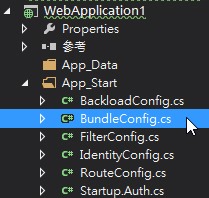
1: bundles.Add(new ScriptBundle("~/bundles/jqueryui").Include(
2: "~/Scripts/jquery-ui-*"));
3: bundles.Add(new StyleBundle("~/Content/themes/base/css").Include(
4: "~/Content/themes/base/all.css"));
----
設定Web.config:
1: <system.web>
2: <authentication mode="None" />
3: <compilation debug="true" targetFramework="4.5" />
4: <!--ASP.NET 上傳限制: 20MB-->
5: <httpRuntime targetFramework="4.5" executionTimeout="300" maxRequestLength="20480"/>
6: </system.web>
7: <system.webServer>
8: <modules>
9: <remove name="FormsAuthentication" />
10: </modules>
11: <!--jquery file upload plugin 要設定下面參數,要不然刪除會有404 Not Found問題-->
12: <handlers accessPolicy="Read, Write, Execute">
13: <remove name="WebDAV" />
14: <remove name="ExtensionlessUrlHandler-ISAPI-4.0_32bit" />
15: <remove name="ExtensionlessUrlHandler-ISAPI-4.0_64bit" />
16: <remove name="ExtensionlessUrlHandler-Integrated-4.0" />
17: <add name="ExtensionlessUrlHandler-ISAPI-4.0_32bit" path="*." verb="GET,POST,PUT,DELETE" modules="IsapiModule" scriptProcessor="%windir%\Microsoft.NET\Framework\v4.0.30319\aspnet_isapi.dll" preCondition="classicMode,runtimeVersionv4.0,bitness32" responseBufferLimit="0" />
18: <add name="ExtensionlessUrlHandler-ISAPI-4.0_64bit" path="*." verb="GET,POST,PUT,DELETE" modules="IsapiModule" scriptProcessor="%windir%\Microsoft.NET\Framework64\v4.0.30319\aspnet_isapi.dll" preCondition="classicMode,runtimeVersionv4.0,bitness64" responseBufferLimit="0" />
19: <add name="ExtensionlessUrlHandler-Integrated-4.0" path="*." verb="GET,POST,PUT,DELETE" type="System.Web.Handlers.TransferRequestHandler" preCondition="integratedMode,runtimeVersionv4.0" />
20: </handlers>
21: <security>
22: <requestFiltering>
23: <!--IIS 上傳限制:20MB-->
24: <requestLimits maxAllowedContentLength="20000000" />
25: </requestFiltering>
26: </security>
27: </system.webServer>
----
設定上傳檔案類型限制與限制上傳檔案大小
若要限制檔案類型,與檔案大小,可在預設的backload.demo.js 修改
backload.demo.js
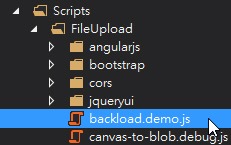
1: $('#fileupload').fileupload({
2: // Uncomment the following to send cross-domain cookies:
3: //xhrFields: {withCredentials: true},
4: url: url,
5: acceptFileTypes: /(\.|\/)(doc|docx|ppt|pptx|xls|xlsx|pdf|txt|gif|jpe?g|png)$/i,
6: maxFileSize: 20000000 // 20 MB
7: });
----
修改預設上傳路徑
預設上傳檔案是存在專案下 ~/Files 目錄,若有需要修改,開啟 Web.Backload.Default.config
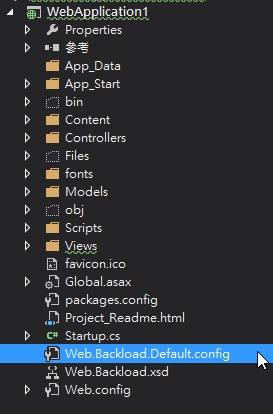
1: <fileSystem filesRoot="D:\Upload" usersRoot="" objectsRoot="" copiesRoot="" />
(要輸入絕對路徑)
----
設定子目錄
若要在預設存儲路徑下增加子目錄,就在上傳頁面(如 ~/Views/BackloadDemo/Index.cshtml)上,增加一個hidden欄位
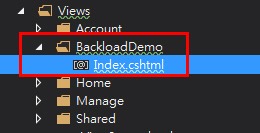
1: <input type="hidden" name="objectContext" value="user123" />
(value的值 就是 子目錄名稱)
以上,做完就可以用了...
此外,若不想用Backload這個人家寫好的file upload controller/handler 也行,網路上應該有很多資料介紹要如何處理檔案上傳、刪除...等等的文章可以參考~
參考:
Backload wiki!
https://github.com/blackcity/Backload/wiki