如何透過程式取得 Azure Active Directory 使用者登入報表(Azure Active Directory sign-in activity report)
圖形化取得Azure使用者登入報表(Login Report)
Office 365 使用Azure AD Free 作為使用者儲存容器,為管理者提供一些基本的操作。此版本Azure AD 預設會提供使用者登入報表,你只要登入到http://portal.office.com,點取左方的[系統管理中心]>[Azure AD],就可以進入到Azure Active Directory 管理中心。接著,請按下左方快捷列的[Azure Active Directory],並且依序點取[管理_使用者和群組]>[活動_登入],便可以進行圖形化操作
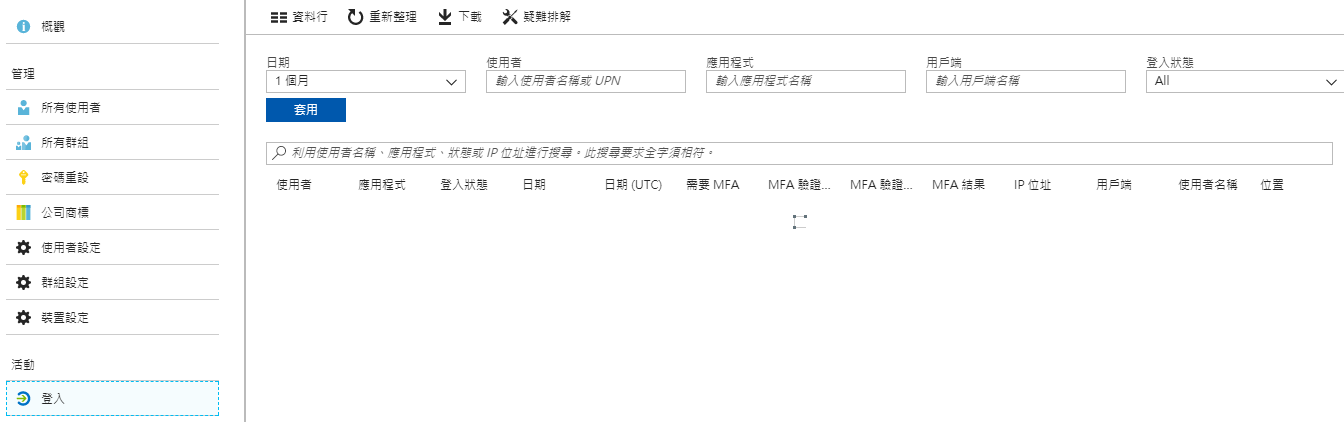
問題是,管理者時間寶貴,如果不想每次都登入操作,而想要透過程式大量取得資訊該怎麼做?針對這個需求,微軟提供了一個稱之為Azure Active Directory Report API,供管理者自動化進行報表的取得。
詳細內容您可以參考開始使用 Azure Active Directory 報告 API,或者依照我下面介紹的方式,便可以迅速地取得你要的報告。
使用程式取得Azure使用者登入報表
簡單來說分成下列幾個步驟,分別是
下面我們將依序介紹如何操作
新增一個應用程式註冊
請先如前文所述,進入Office 365 的Azure AD 管理中心。點下左側快捷列的[Azure Active Directroy]>[應用程式註冊]
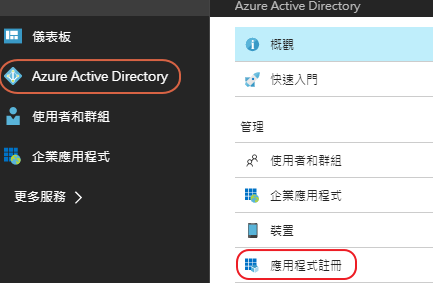
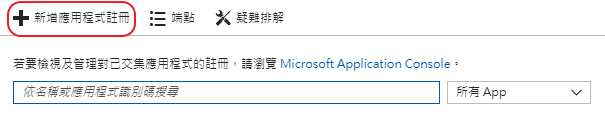
接著按一下新增應用程式註冊
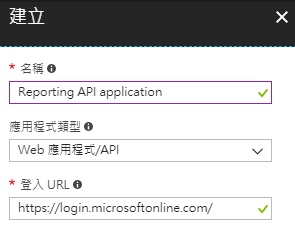
依序輸入資料,輸入完畢按建立

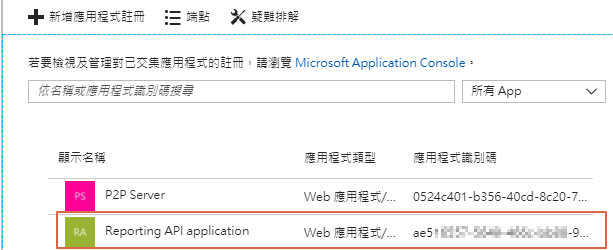
接著請回到應用程式註冊,你會發現已經剛才建立的項目已經出現在下方。請點擊該應用程式。
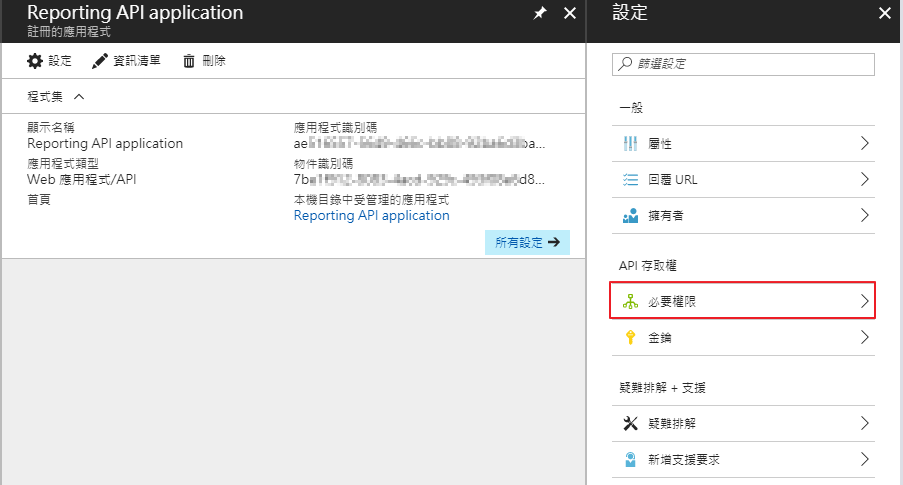
按一下右方的必要權限
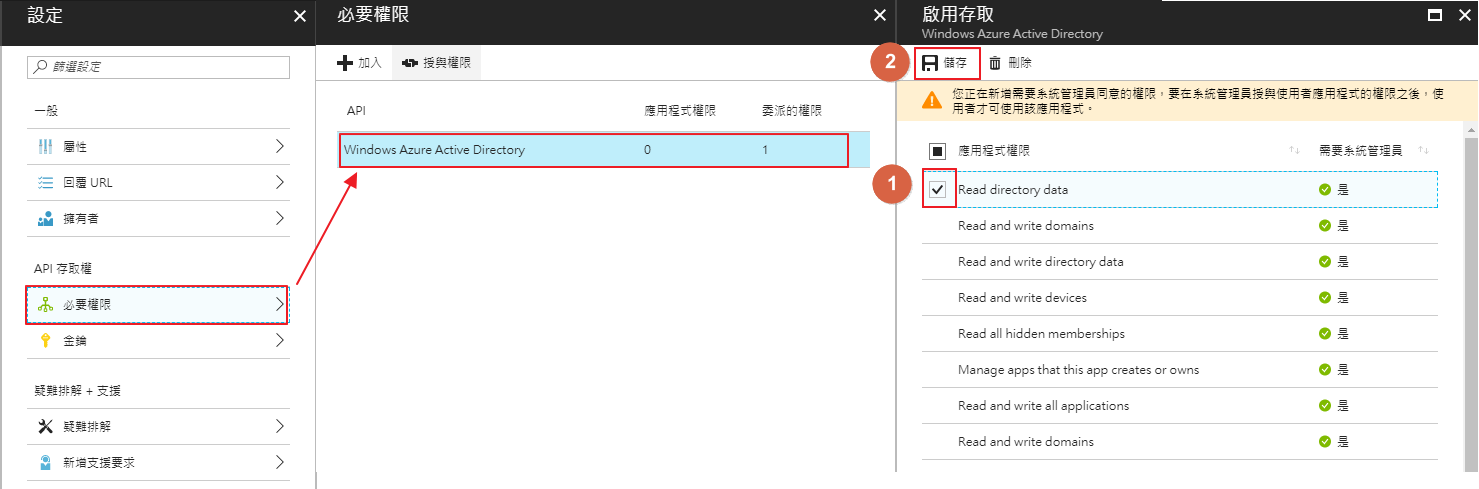
選擇必要權限>Window Azure Active Directory>勾選Read directory data,按下儲存
系統提示更新完畢,這部分就算完成

取得OAuth權限
接下來我們要取得Oauth權限。這裡有兩個方法提供參考。
方法ㄧ 使用GUI授予權限
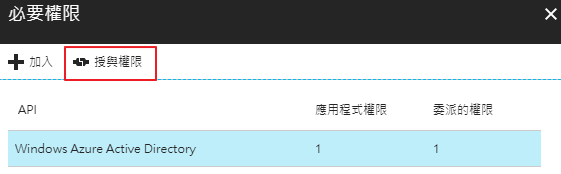
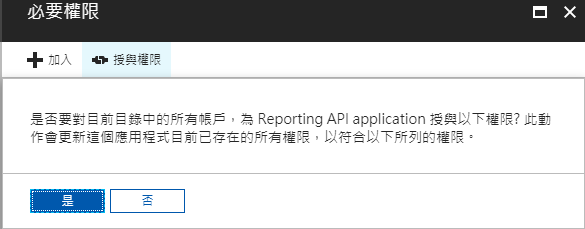
接下來一樣回到剛才的畫面,我們點一下授予權限
系統提示,請按是
方法二:使用瀏覽器進行授權
利用剛才完成的應用程式註冊,修改下列的網址
https://login.microsoftonline.com/<office 365 tenant 名稱>/oauth2/authorize?client_id=<應用程式識別碼>&response_type=code&redirect_uri=sample://callback&nonce=1234&resource=https://graph.windows.net&prompt=admin_consent
第一組紅字的部分,請改成你的Tenant名稱。例如:contoso.onmicrosoft.com
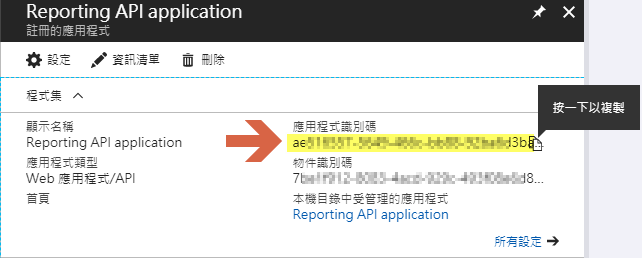
第二組紅字,Client_Id=之後的一串,請改成你剛才建立完成的應用程式識別碼。例如0db645a7-5c83-4ef0-9a54-d82e53671191
所以,指揮艇組合後會有這樣的字串出現
https://login.microsoftonline.com/contoso.onmicrosoft.com/oauth2/authorize?client_id=0db645a7-5c83-4ef0-9a54-d82e53671191&response_type=code&redirect_uri=sample://callback&nonce=1234&resource=https://graph.windows.net&prompt=admin_consent
甚麼,你已經忘記應用程式識別碼在哪?
接著請打開 IE,將剛才的字串
https://login.microsoftonline.com/contoso.onmicrosoft.com/oauth2/authorize?client_id=0db645a7-5c83-4ef0-9a54-d82e53671191&response_type=code&redirect_uri=sample://callback&nonce=1234&resource=https://graph.windows.net&prompt=admin_consent
貼到IE網址列並按下Enter

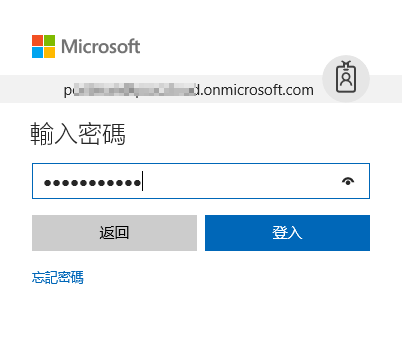
輸入管理者帳號密碼
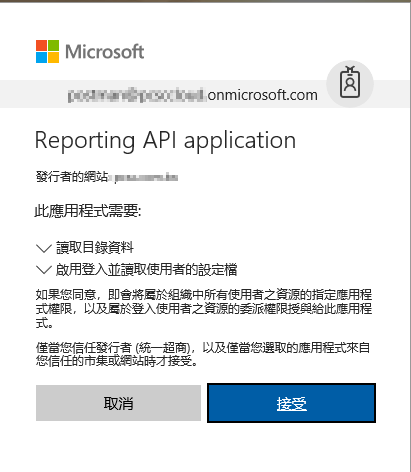
系統會跳出警告訊息,請按接受,即完成權限給定
系統會跳出這錯誤,但可以忽略。

取得應用程式金鑰
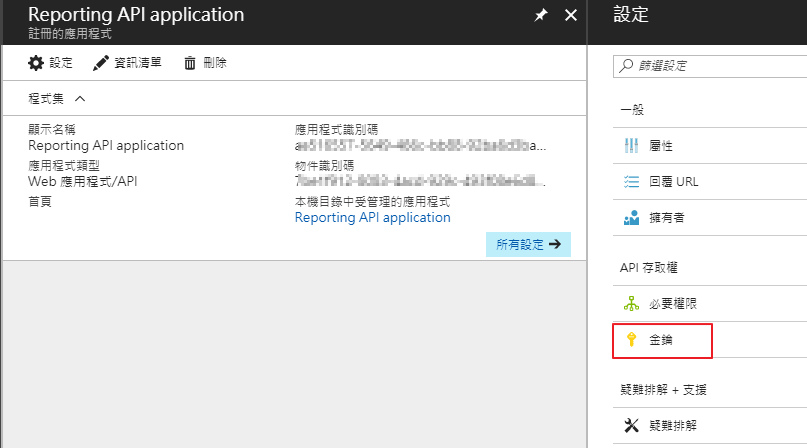
接下來我們要取得應用程式金鑰。一樣請進入到剛才新增的應用程式註冊>設定。此處我們選擇[金鑰]
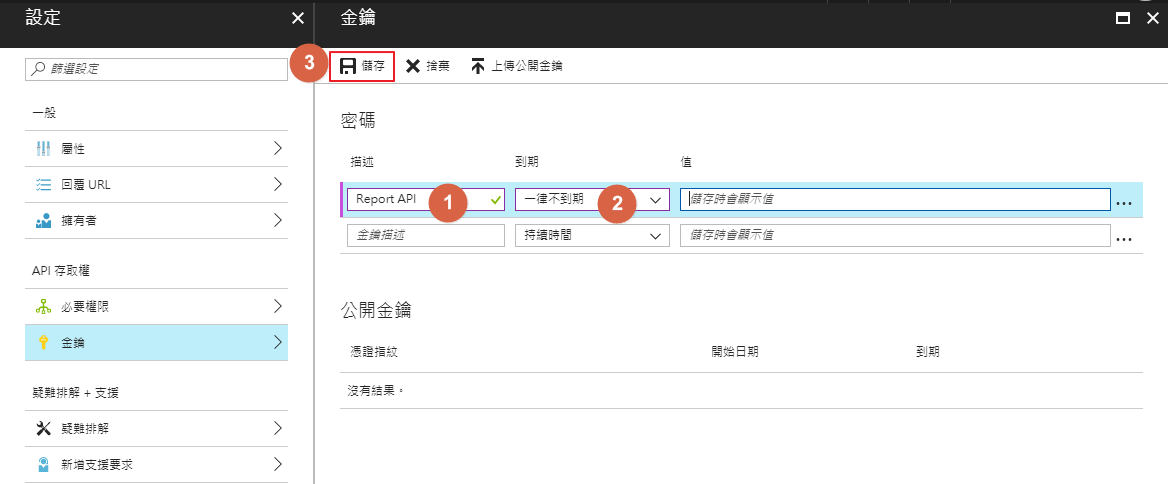
輸入金鑰的描述,到期可以選一年,兩年或一律不到期。此處我們選一律不到期。接著按下儲存。
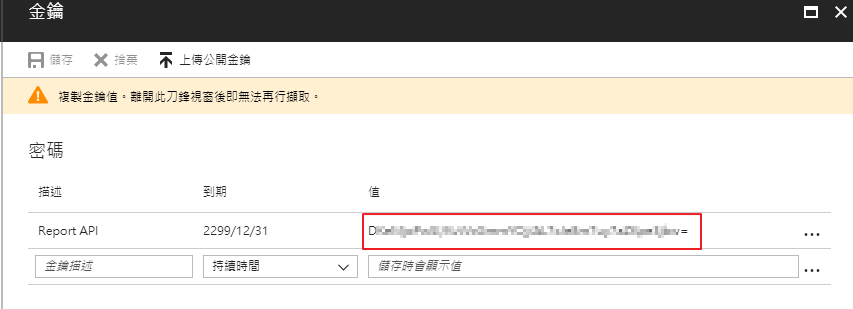
這個時候,請務必複製紅框內的金鑰,並且妥善保存於文字檔案內

到微軟官方網站下載取得報表的Powershell程式並修改內容
請到微軟官方網站Gallery下載 Pull Azure AD Sign In Reports (PullAzureSignInReports.ps1)
下載之後開啟程式碼,找到下面的內容。
# This script will require the Web Application and permissions setup in Azure Active Directory
$ClientID       = "insert GUID here"             # Should be a ~35 character string insert your info here
$ClientSecret   = "insert secret here"         # Should be a ~44 character string insert your info here
$loginURL       = "https://login.windows.net"
$tenantdomain   = "insert initial tenant domain name here"            # For example, contoso.onmicrosoft.com
$Tenantname = $tenantdomain.Split('.')[0]
其中
$ClientID 應用程式識別碼
$ClientSecret 對應應用程式識別碼的金鑰
$loginURL = "https://login.microsoftonline.com/" 保留原狀也可以
$tenantdomain = 你的 office 365 Tenant 名稱,如 contoso.onmicrosoft.com
修改完之後會長的像這樣,請記得存檔
# This script will require the Web Application and permissions setup in Azure Active Directory
$ClientID       = "xxxxxxxx-xxxx-xxxx-xxxx-xxxxxxxxxxxx"             # Should be a ~35 character string insert your info here
$ClientSecret   = "xxxxxxxxxxxxxxxxxxxxxxxxxxxxxxxxxxxxxxxxxxxxx"         # Should be a ~44 character string insert your info here
$loginURL       = "https://login.microsoftonline.com/"
$tenantdomain   = "contoso.onmicrosoft.com"            # For example, contoso.onmicrosoft.com
執行powershell程式並取得報表
最後,請開啟Powershell Console 執行剛剛存檔的程式ps1
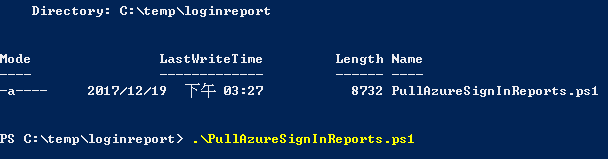
當程式執行完,就可以在目錄下取得以tenant名稱命名的CSV,內容為使用者的登入活動紀錄。

大功告成!!