[Sharepoint 2013] Office Web Apps Server 2013 (OWA) Install and Configuration
在 Sharepoint 2013 裡做了一個很大的改變,以往OWA 只是一個Sharepoint 裡的 Service,現在 OWA 與 Sharepoint 分離,獨立變成一個 Server,在 OWA 的環境裡不能安裝以下軟體或服務。
-
執行 Office Web Apps Server 的伺服器絕不能執行任何其他伺服器應用程式。其中包括 Exchange Server、SharePoint Server、Lync Server 和 SQL Server。如果您有硬體的條件限制,可以在上述其中一個伺服器上的虛擬機器執行個體中執行 Office Web Apps Server。
-
請勿安裝與連接埠 80、443 或 809 上網頁伺服器 (IIS) 相關聯的任何服務或角色,因為 Office Web Apps Server 會定期移除這些連接埠上的 Web 應用程式。
-
請勿安裝任何版本的 Office。您必須先解除安裝 Office,才能安裝 Office Web Apps Server。
請參考 規劃 Office Web Apps Server。
本文安裝架構(沒錢買硬體,全部都裝在同一台機器,跑Hyper-V):
![image_thumb[38]](https://dotblogsfile.blob.core.windows.net/user/yc421206/1306/116a8977365a_B435/image_thumb%5B38%5D_2.png "image_thumb[38]")
安裝步驟:
@ Server 2008 R2
PS.若KB2592525無法安裝,請參考下篇:
1.Run Windows PowerShell
2.Type Import-Module ServerManager
@Server 2008 R2:
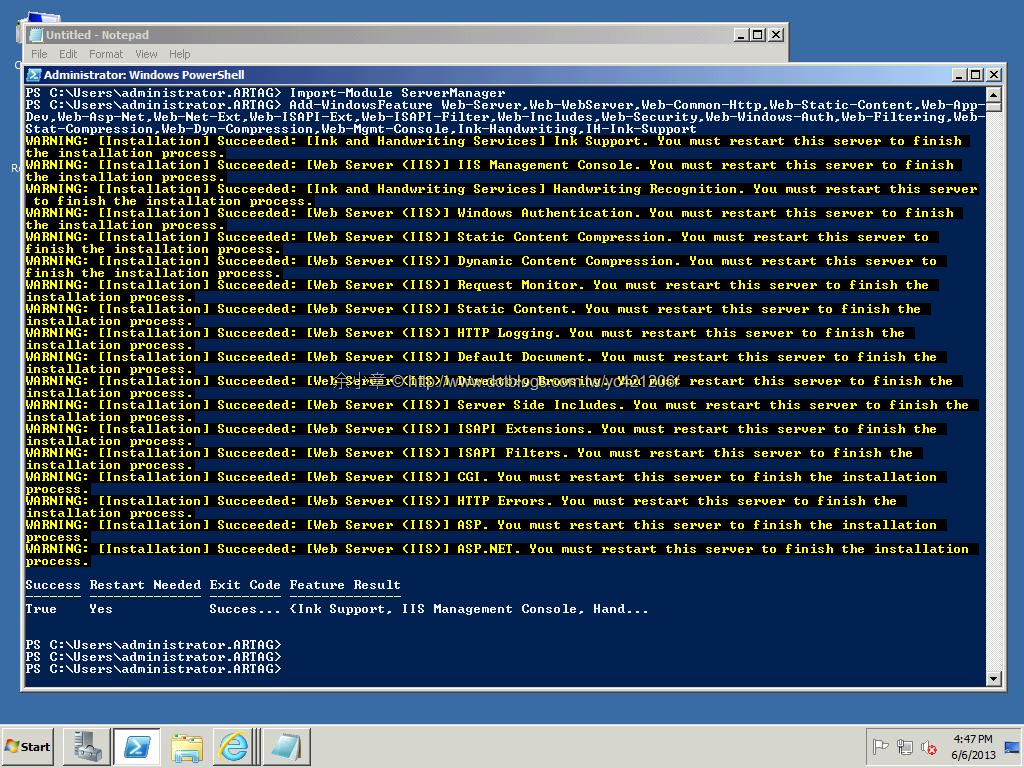
3.Add-WindowsFeature Web-Server,Web-WebServer,Web-Common-Http,Web-Static-Content,Web-App-Dev,Web-Asp-Net,Web-Net-Ext,Web-ISAPI-Ext,Web-ISAPI-Filter,Web-Includes,Web-Security,Web-Windows-Auth,Web-Filtering,Web-Stat-Compression,Web-Dyn-Compression,Web-Mgmt-Console,Ink-Handwriting,IH-Ink-Support
安裝畫面如下:
@Server 2012
3.Add-WindowsFeature Web-Server,Web-Mgmt-Tools,Web-Mgmt-Console,Web-WebServer,Web-Common-Http,Web-Default-Doc,Web-Static-Content,Web-Performance,Web-Stat-Compression,Web-Dyn-Compression,Web-Security,Web-Filtering,Web-Windows-Auth,Web-App-Dev,Web-Net-Ext45,Web-Asp-Net45,Web-ISAPI-Ext,Web-ISAPI-Filter,Web-Includes,InkandHandwritingServices
4.Reboot
下載位置:
http://www.microsoft.com/en-us/download/details.aspx?id=35489
安裝完畢,記得重新開機 (Reboot)。
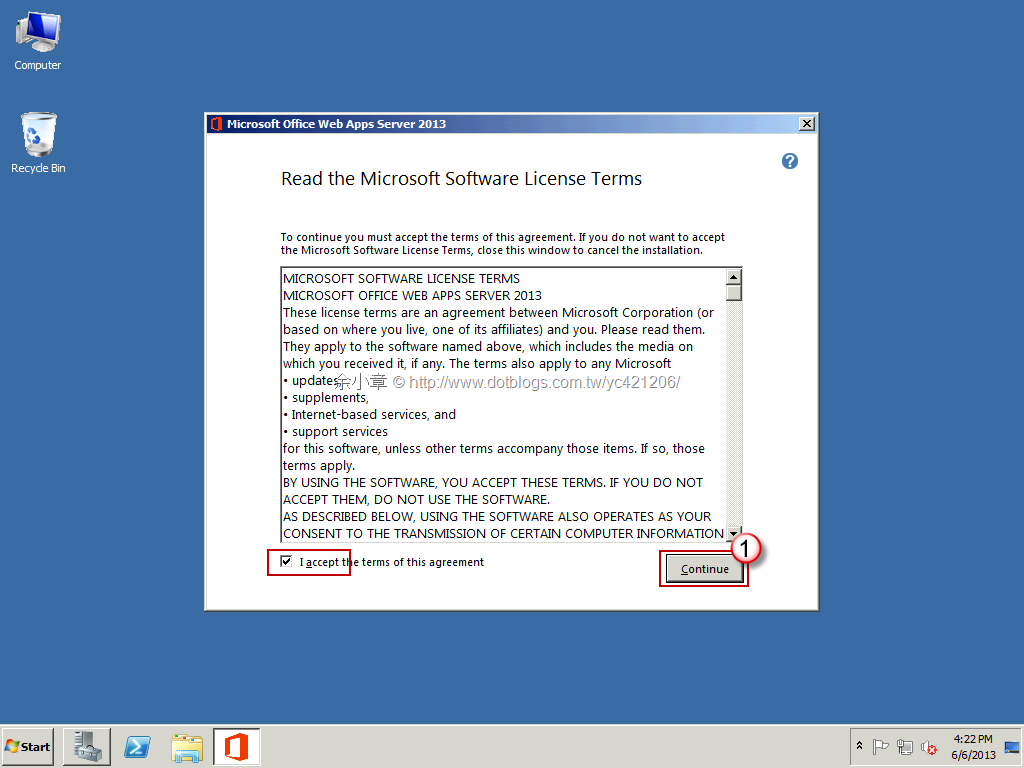
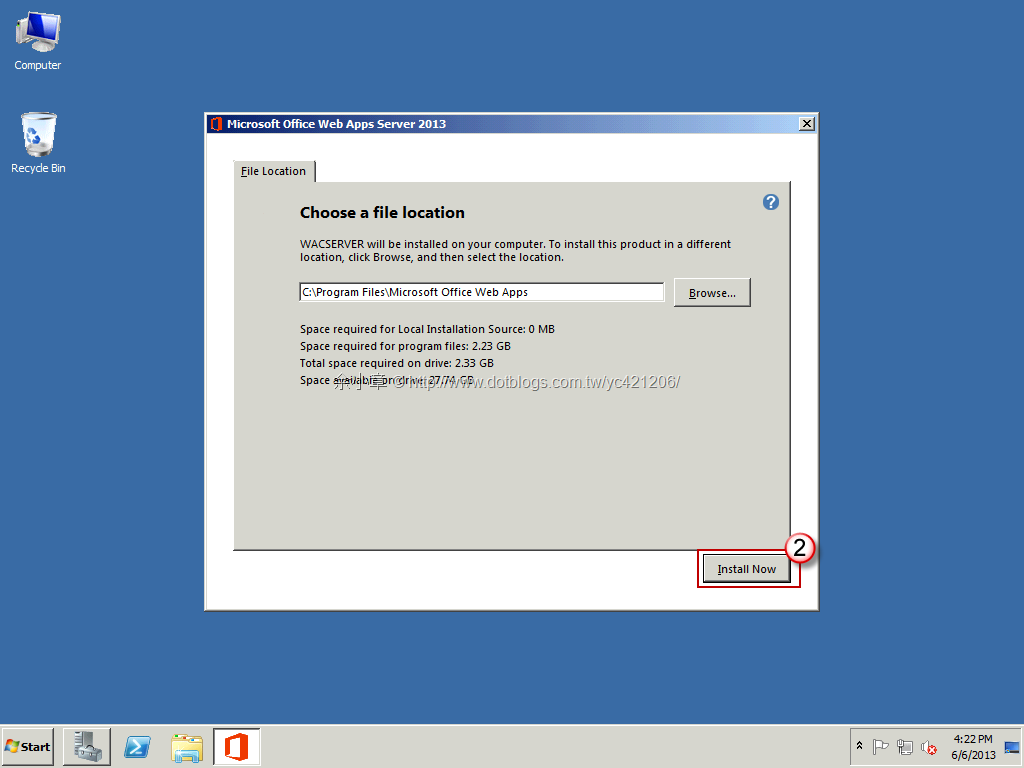
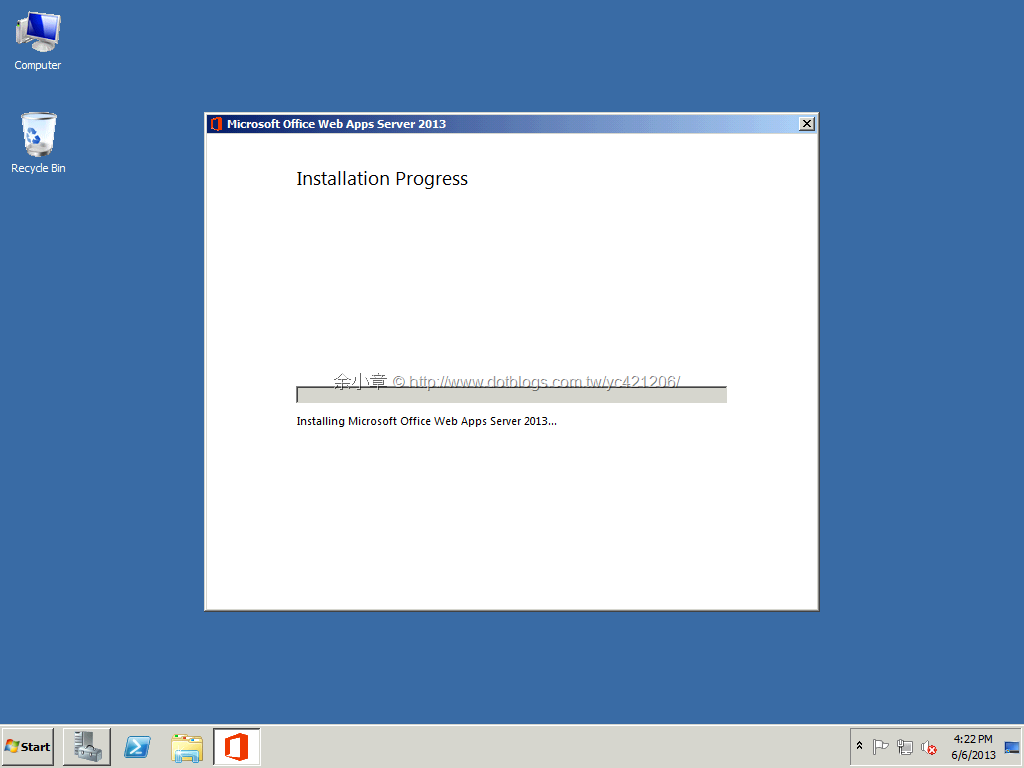
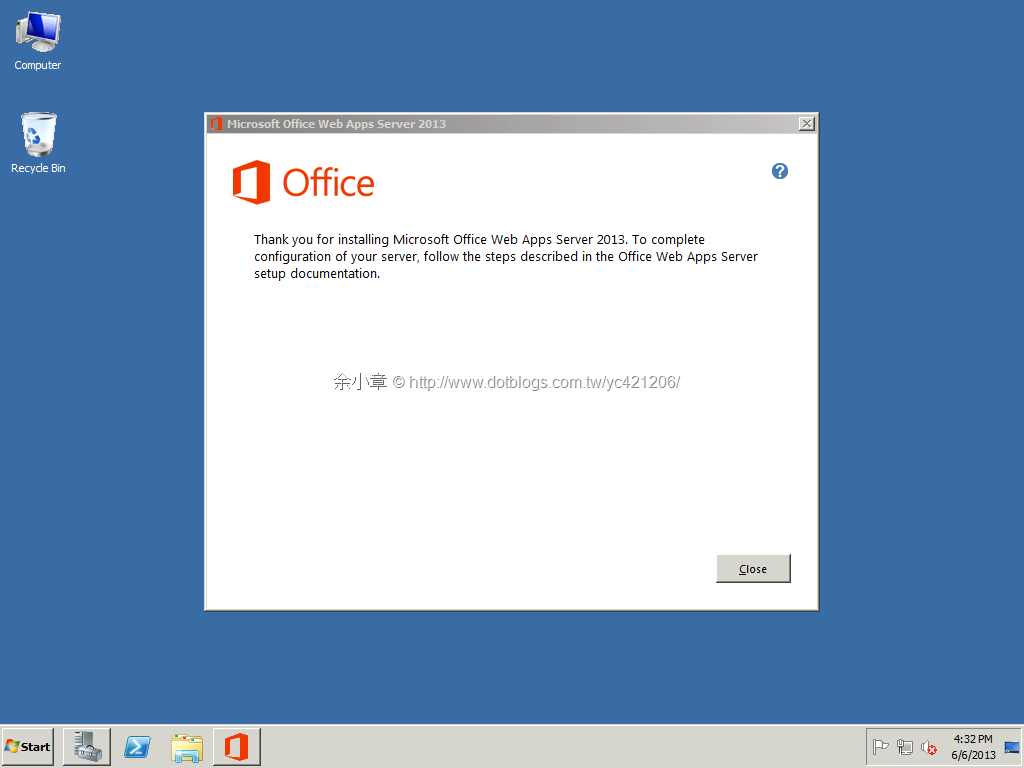
http://www.microsoft.com/zh-tw/download/details.aspx?id=35490
Step5.建立 Office Web Apps Server 伺服器陣列
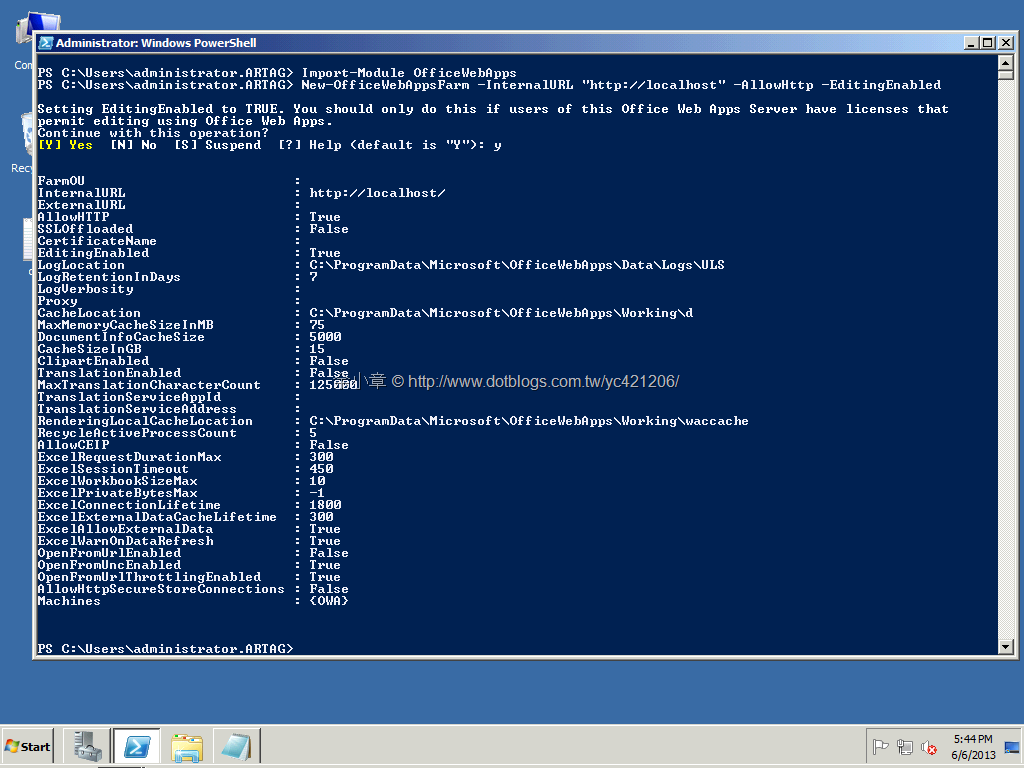
Run Windows PowerShell
Import-Module OfficeWebApps
New-OfficeWebAppsFarm –InternalURL "http://127.0.0.1" –AllowHttp –EditingEnabled
-ExternalUrl "http://wacweb01.contoso.com" 是對外服務,若不需要對外服務可省略。
安裝畫面如下圖:
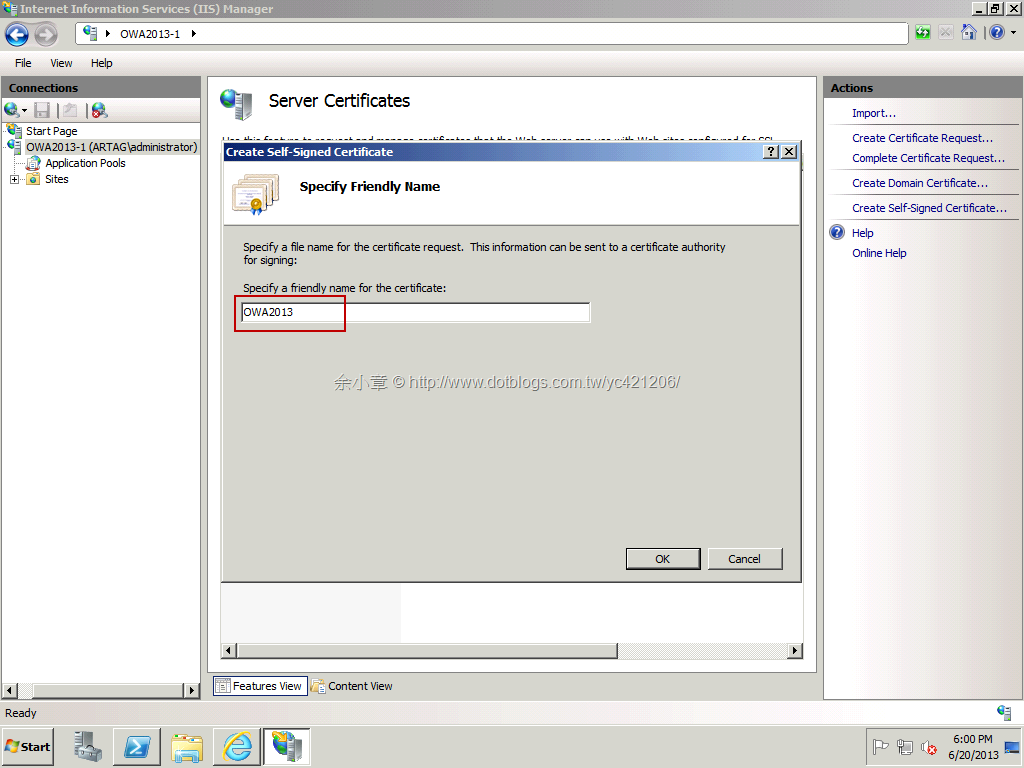
建立IIS憑證,可參考以下:
http://www.dotblogs.com.tw/yc421206/archive/2013/06/20/105655.aspx#s1
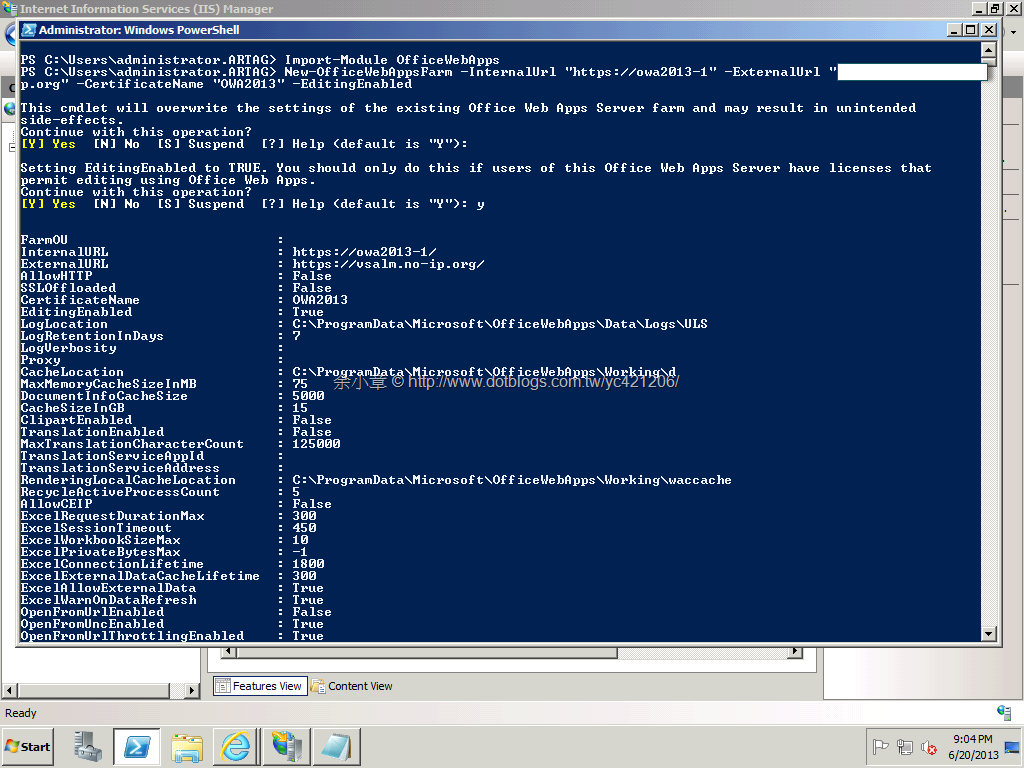
New-OfficeWebAppsFarm -InternalUrl https://127.0.0.1 -ExternalUrl "https://wacweb01.contoso.com" –CertificateName "OWA2013" –EditingEnabled
-CertificateName "OWA2013" 憑證名稱
安裝畫面如下:
Step6.驗證已成功建立 Office Web Apps Server 伺服器陣列
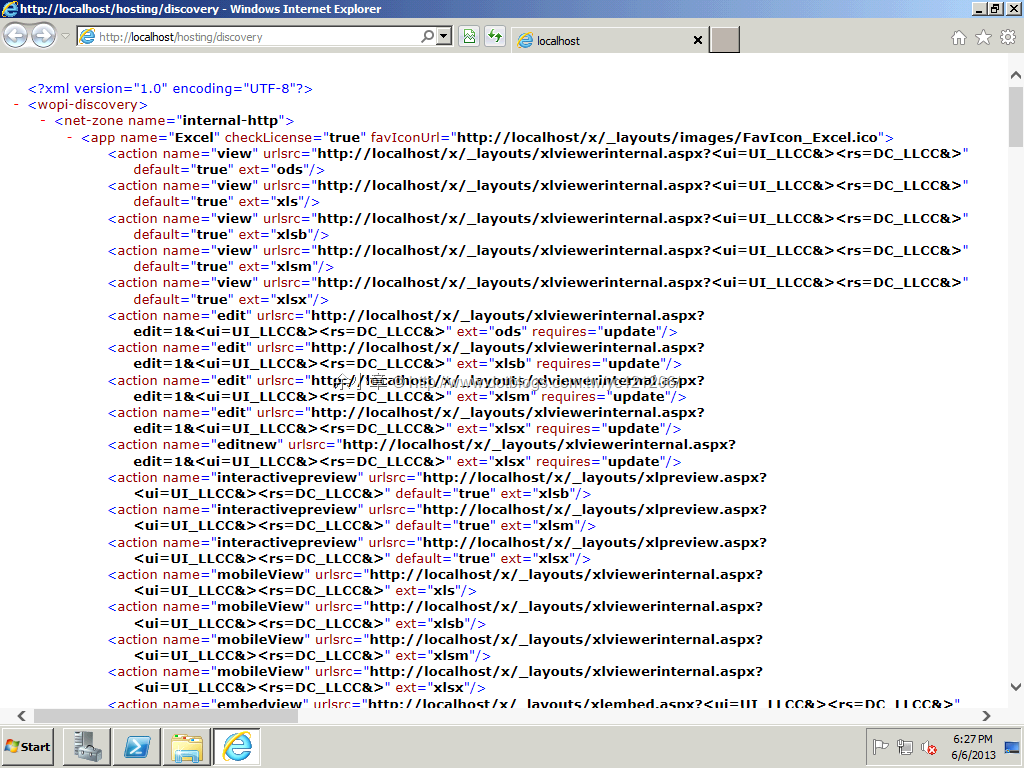
在網址列輸入 http://localhost/hosting/discovery
結果如下圖:
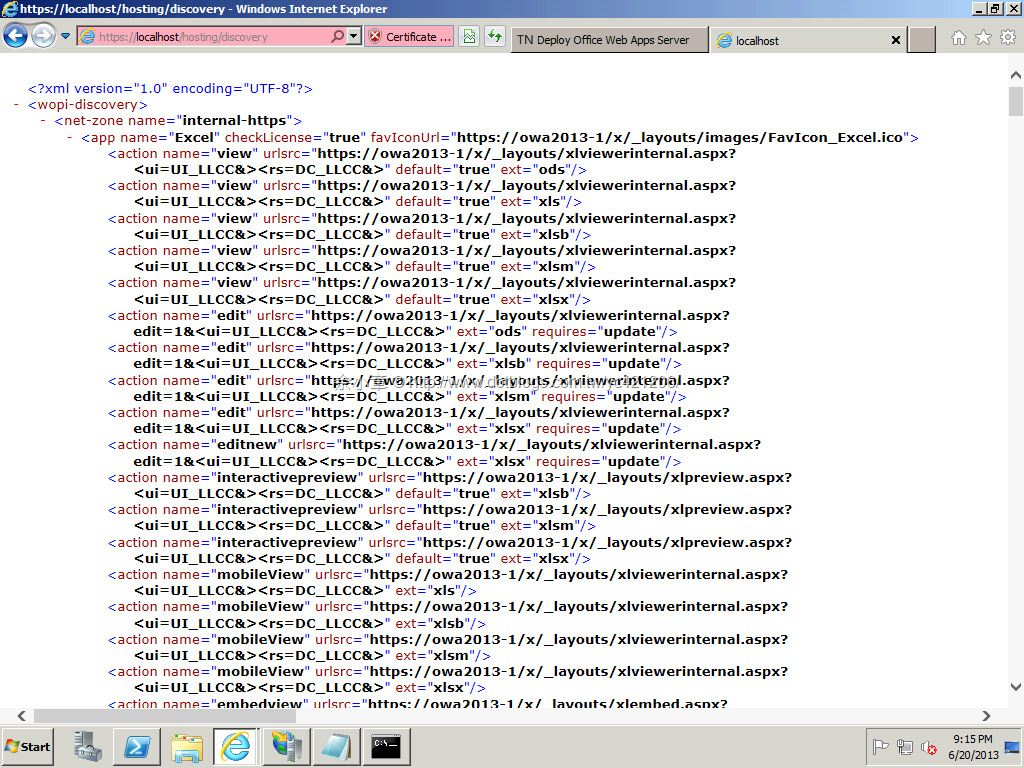
在網址列輸入 https://localhost/hosting/discovery
結果如下圖:
若有謬誤,煩請告知,新手發帖請多包涵

Microsoft MVP Award 2010~2017 C# 第四季
Microsoft MVP Award 2018~2025 .NET
