想要讓 GitHub Copilot 串其他 AI 平台的 model 到 GitHub Copilot 在 Organtization 來使用,行不行?
行,當然行!
看 GitHub 設定 API key 的選項:
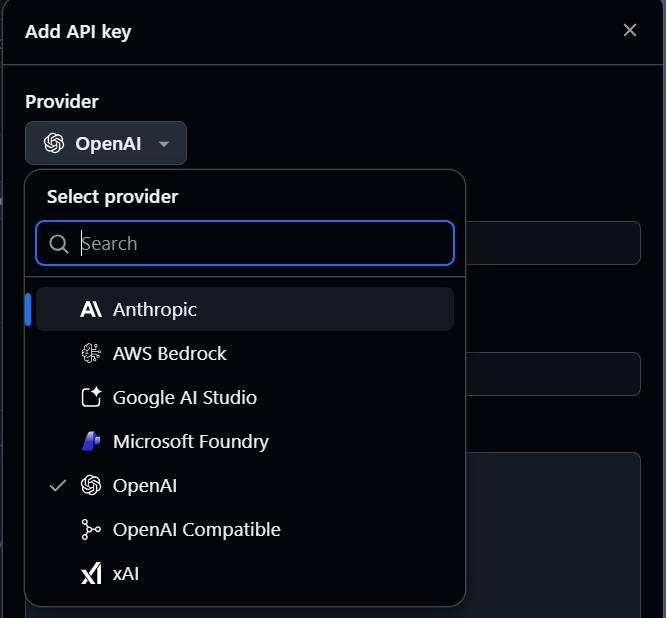
基本上主流的幾家 AI 平台都支援了!
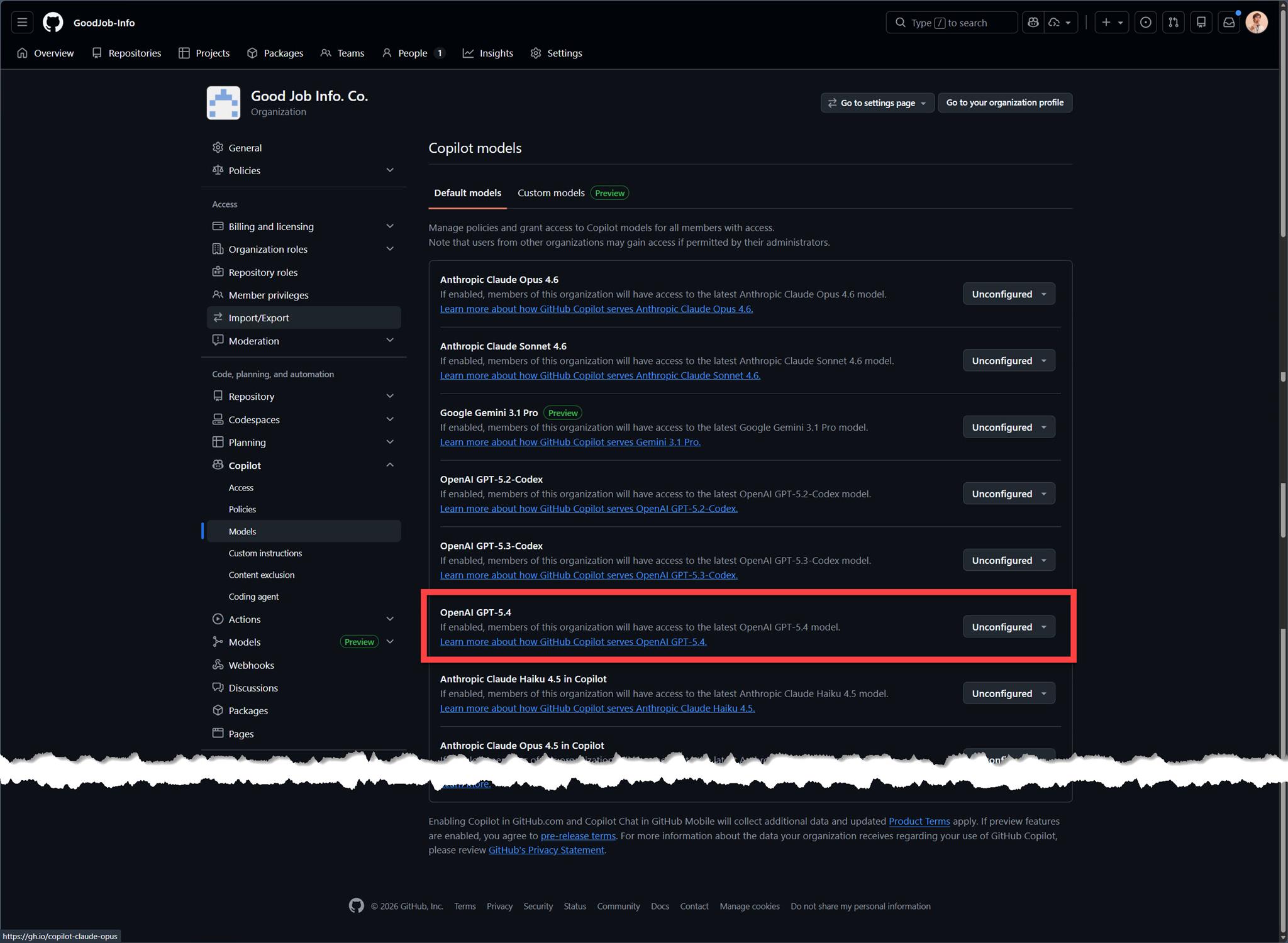
而在 OpenAI 發佈 GPT-5.4 / GPT-5.4-Pro 的這個時間點 的同時,在 GitHub 的 Copilot 當中提供的 models 就可以看到於 Default models 有提供 Open AI GPT-5.4 可供選擇:
在同一天的 Microsoft Foundry 也宣布提供 OpenAI 的 GPT-5.4 / GPT-5.4-Pro,過沒多久就可以在 Azure 提供的 models 當中可以選擇 GPT-5.4 / GPT-5.4-Pro:
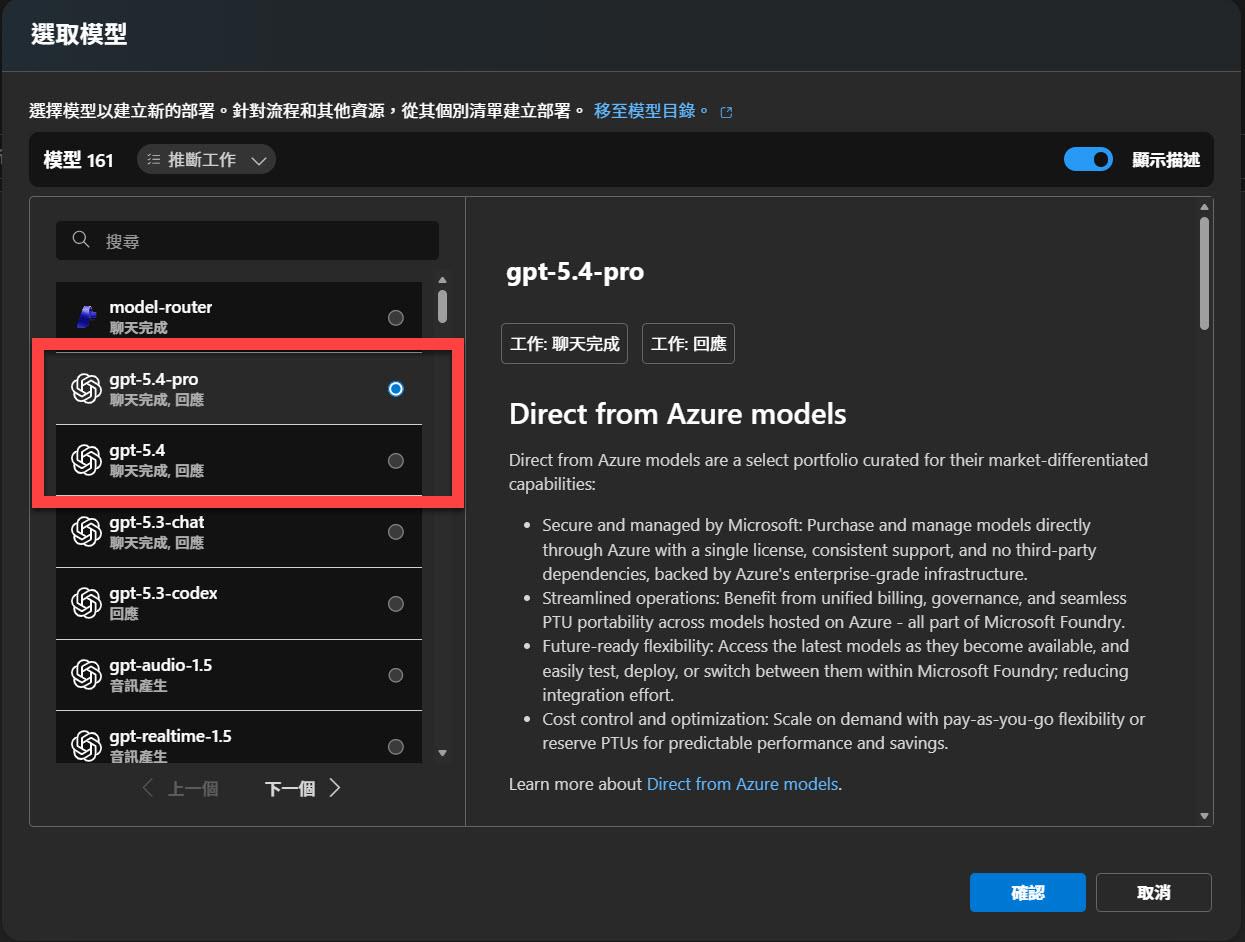
等等…GitHub Copilot 提供的 models 好像缺了 GPT-5.4-Pro?
本來以為是 Organization 當中的 GitHub Copilot 才有這樣的情況,打開 Visual Studio 跟 Visual Studio Code 檢查了一下,個人訂閱用的 Copilot Pro + 也是一樣的狀況:
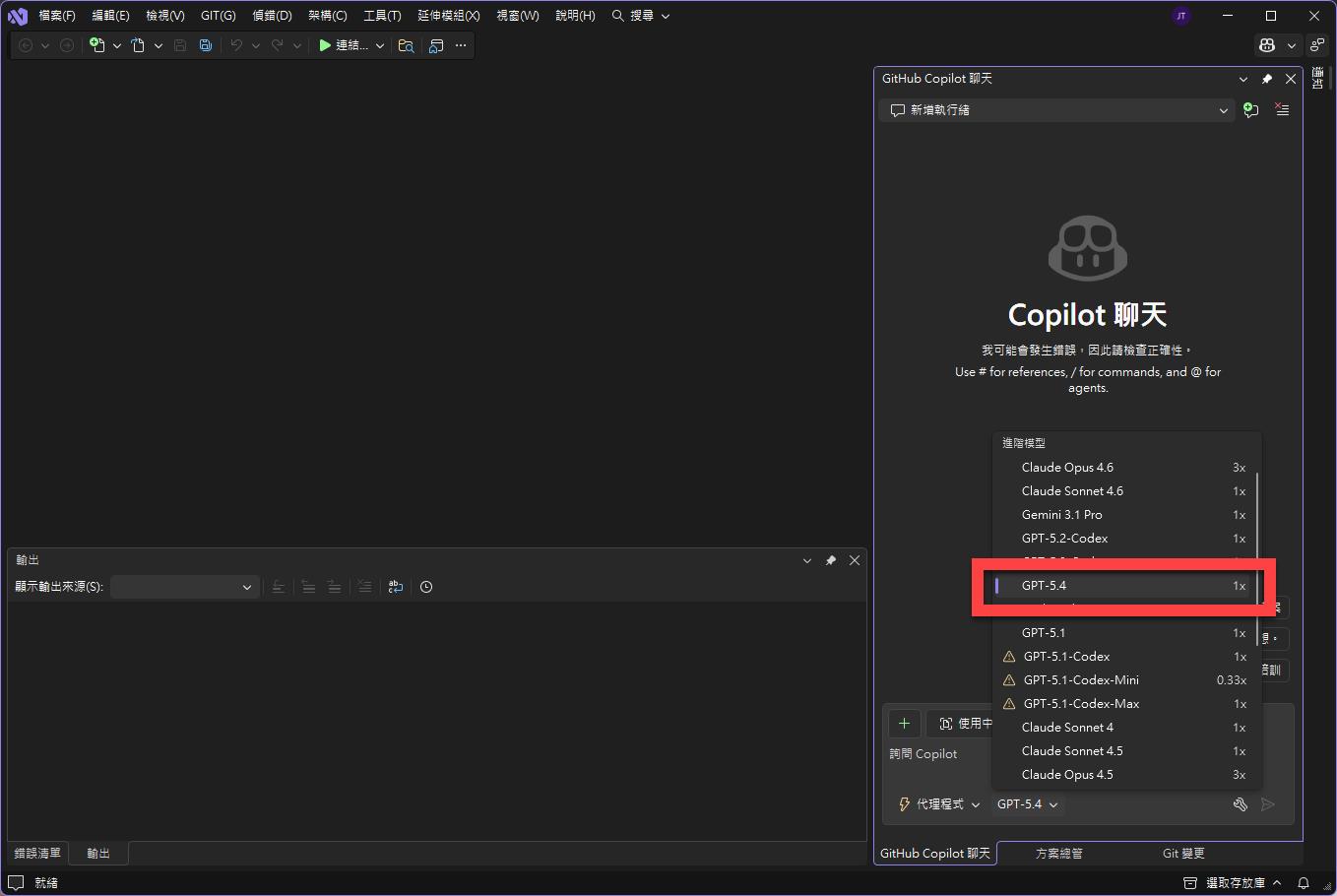
Visual Studio
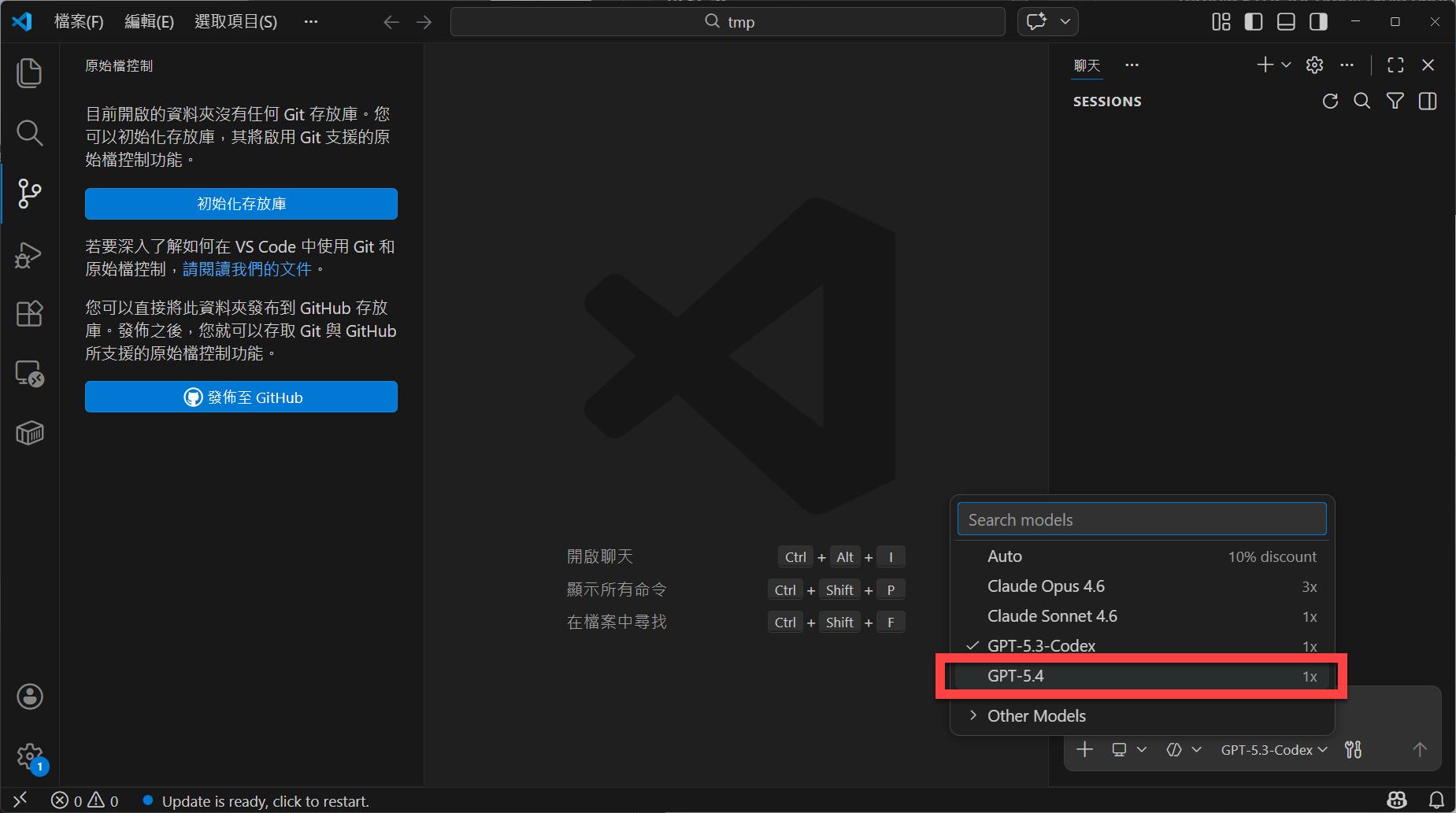
Visual Studio Code
結果不是這麼一回事,是目前 GitHub Copilot 都沒有提供 GPT-5.4-Pro 可以使用。
不過,既然 Microsoft Foundry 已經有提供 GPT-5.4-Pro 的 model 了,而且 GitHub Copilot 在 Organtization 的設定當中也提供 Custom models 的設定,那就把它們串起來吧!
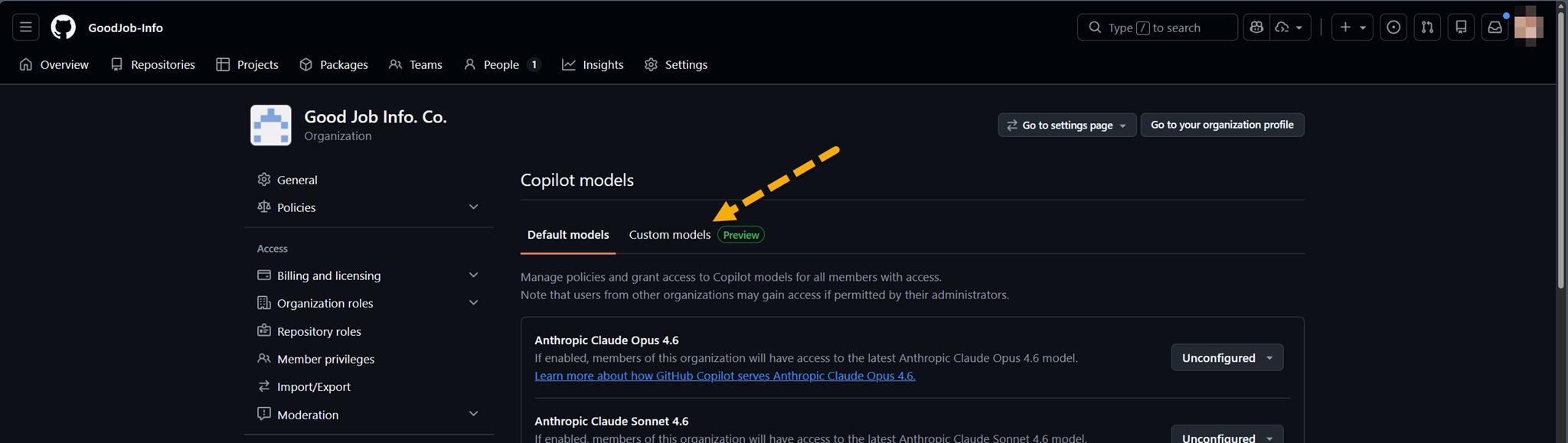
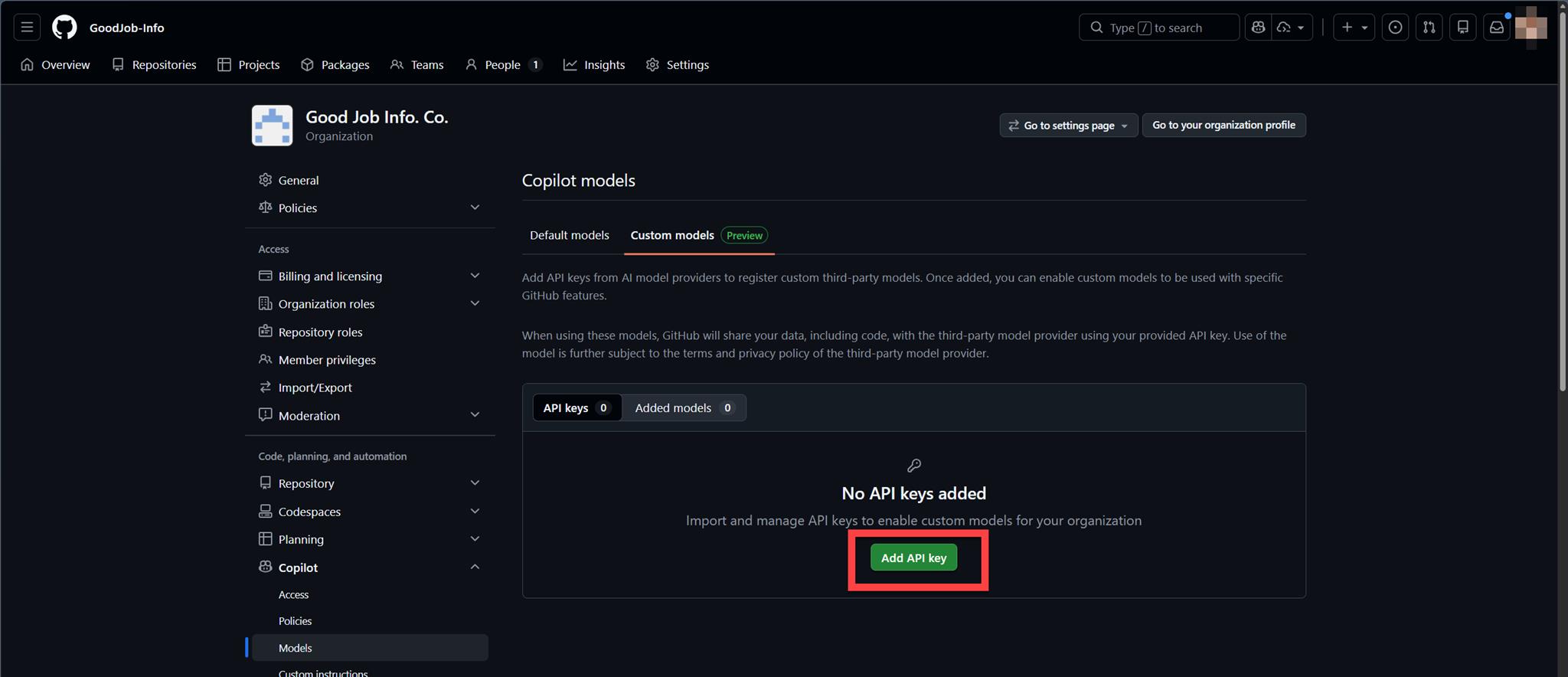
所以切到 Custom models (Preview) 後,點選 "Add API key":
在右邊會出現 Add API key 的設定窗格,其中的 Provider 可選的有不少,當然這次的主角是 Microsoft Foundry:
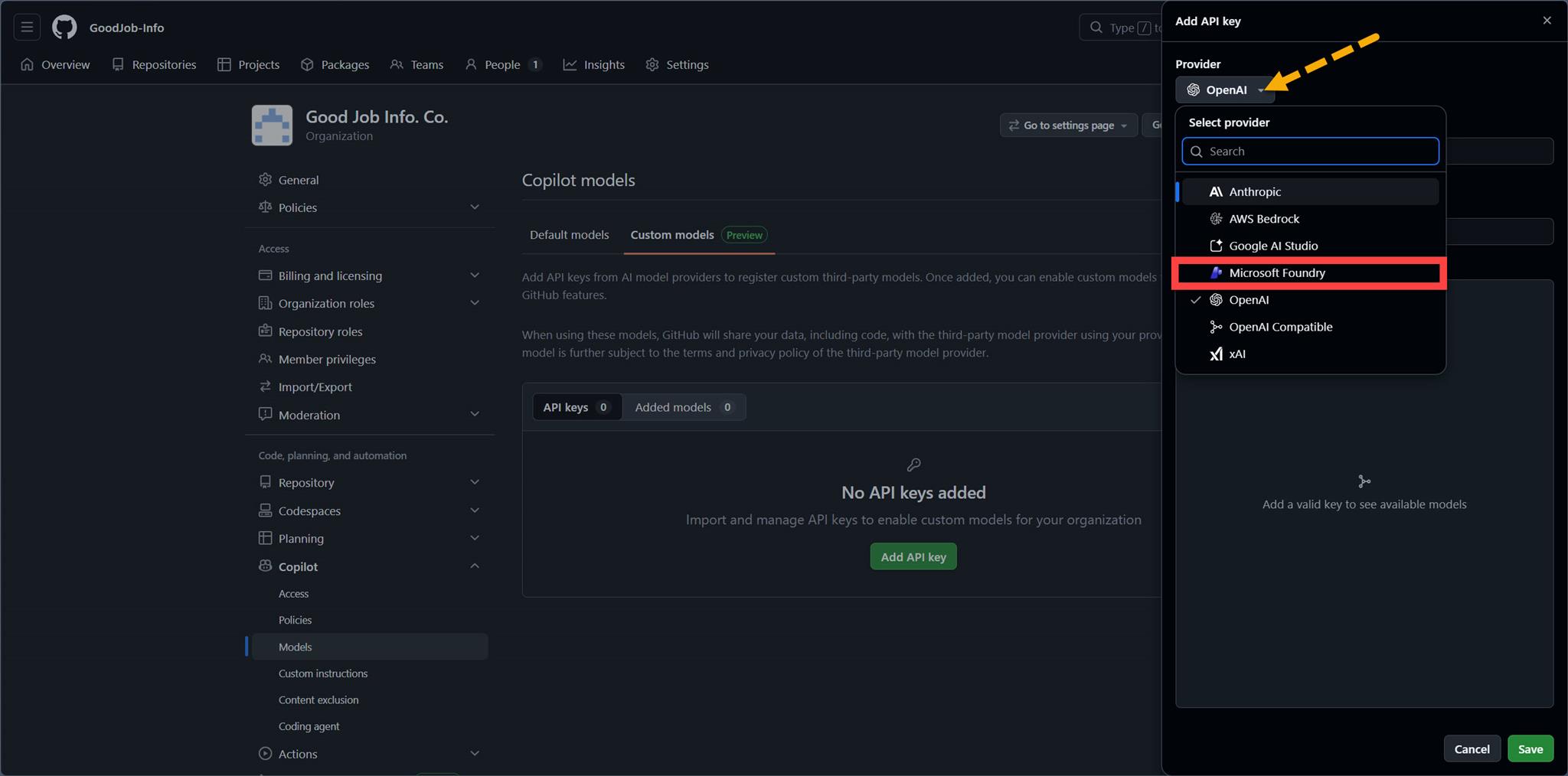
點選 Microsoft Foundry 後的設定畫面會變成這樣:
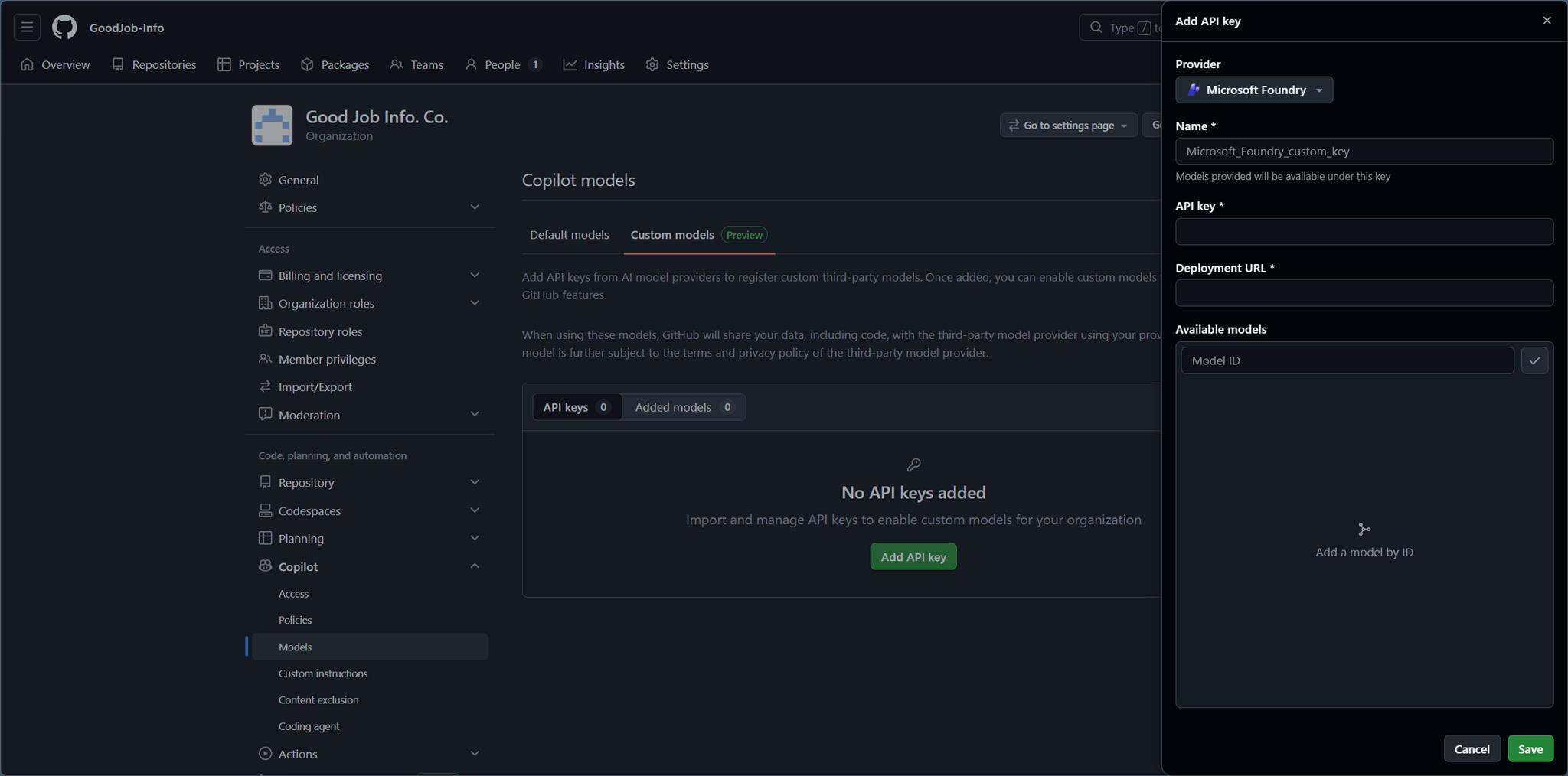
有 Name、API key、Deployment URL 這三個資料需要填寫。
對照 Microsoft Foundry 的 OpenAI 設定:
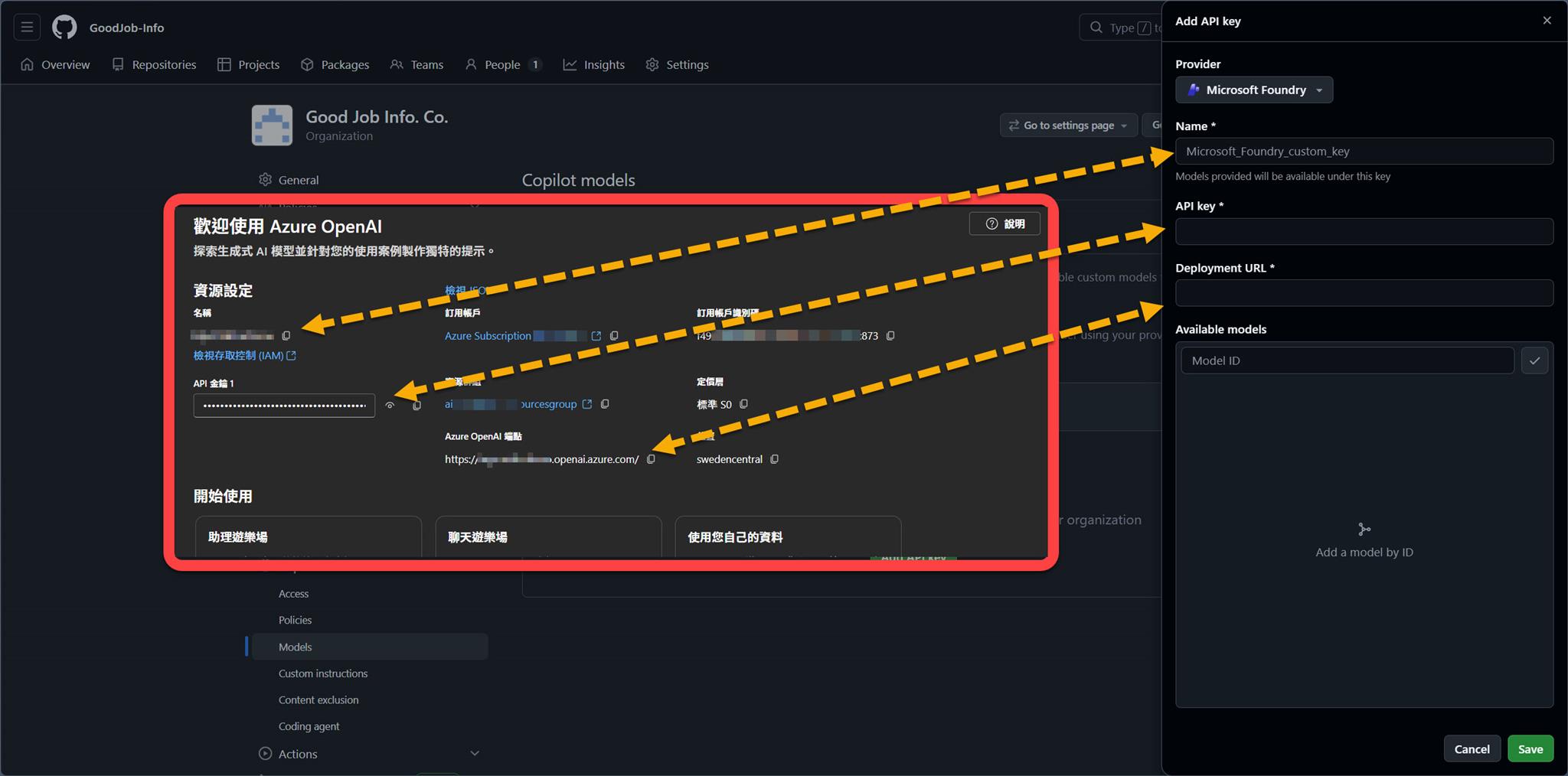
(紅框內為 Microsoft Foundry 的畫面)
Available models 則自行填寫該 Microsoft Foundry 的 OpenAI 資源當中已經部署的 models,本篇的目標是 gpt-5.4-pro 的 model 串接,所以填寫後點選 "+",結果就會如下圖:
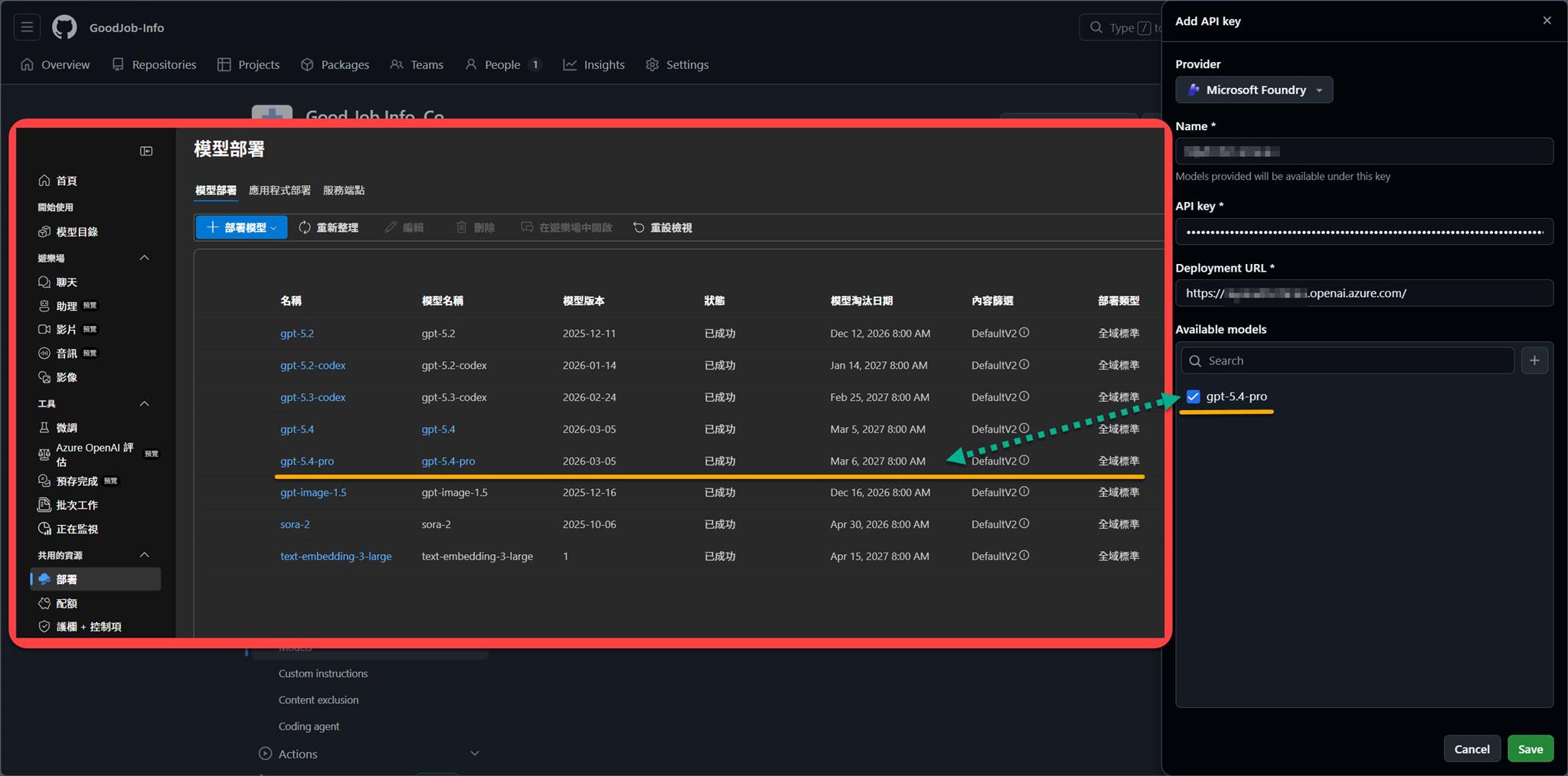
(紅框內為 Microsoft Foundry 的畫面)
點選 "Save" 後,會看到 GitHub 的 "Successfully" 提示訊息及在 Copilot models 的 Custom models 畫面會變成這樣:
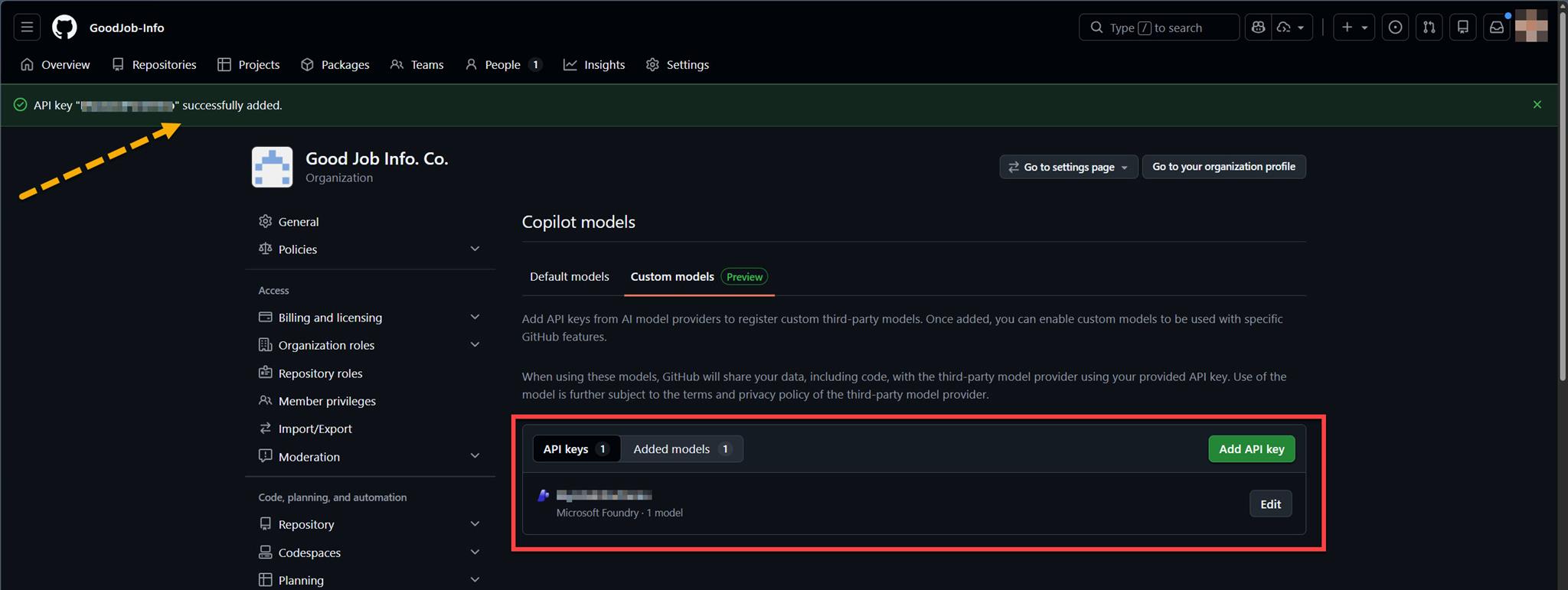
在這邊切換 Added models,並且點選 Configure:
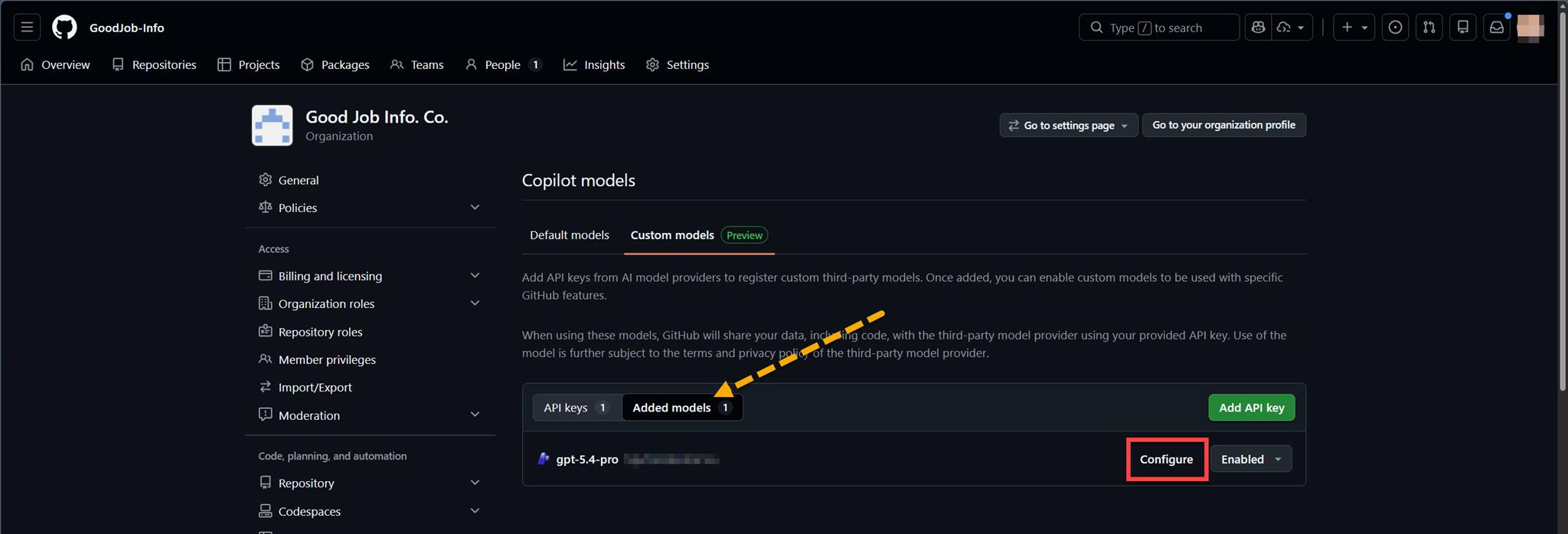
需要特別客製化的就大概只有 Display name 這個欄位特別編輯一下,以便識別。其他的欄位項目則依對於 model 使用的需求去設定吧!
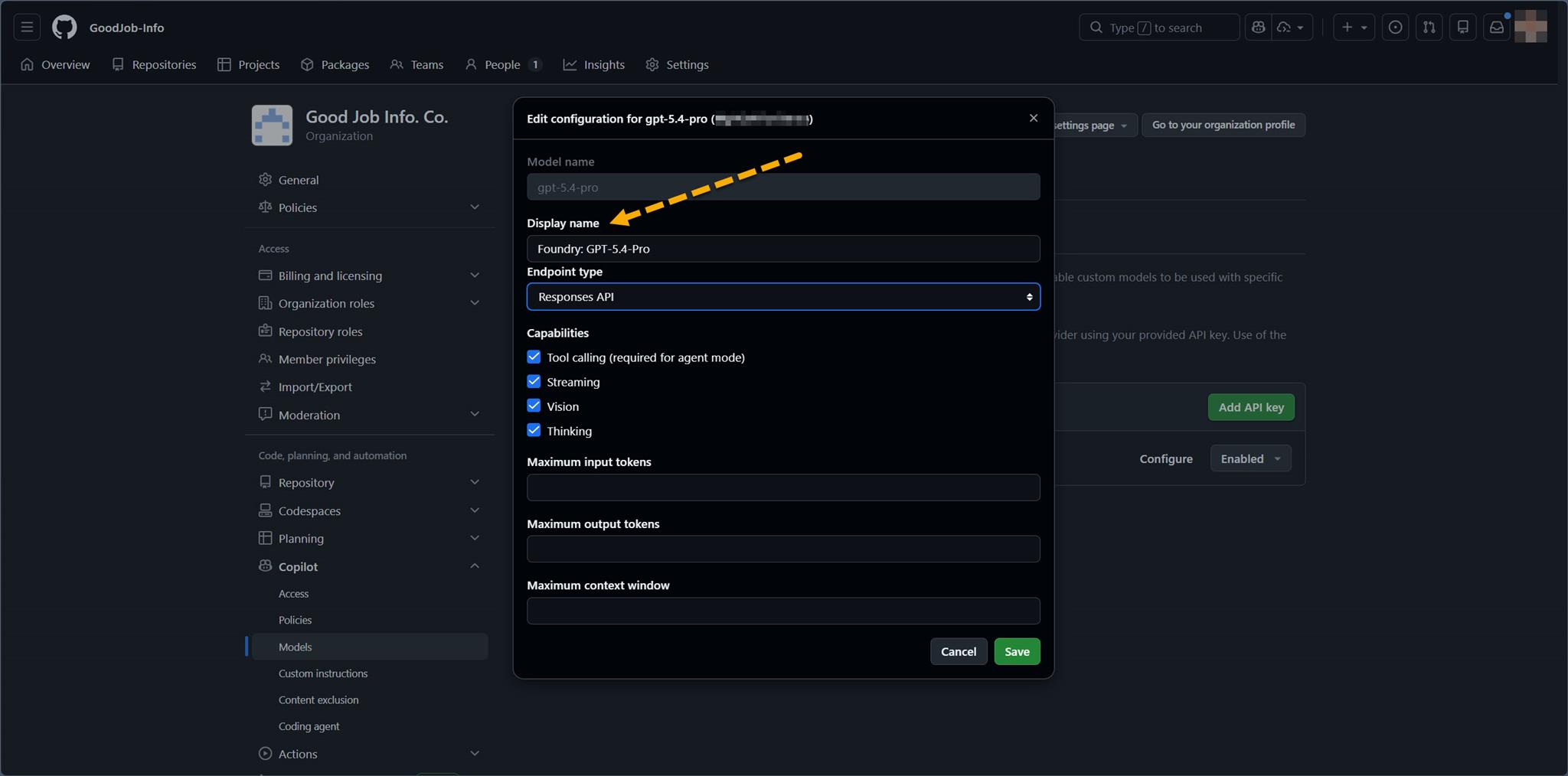
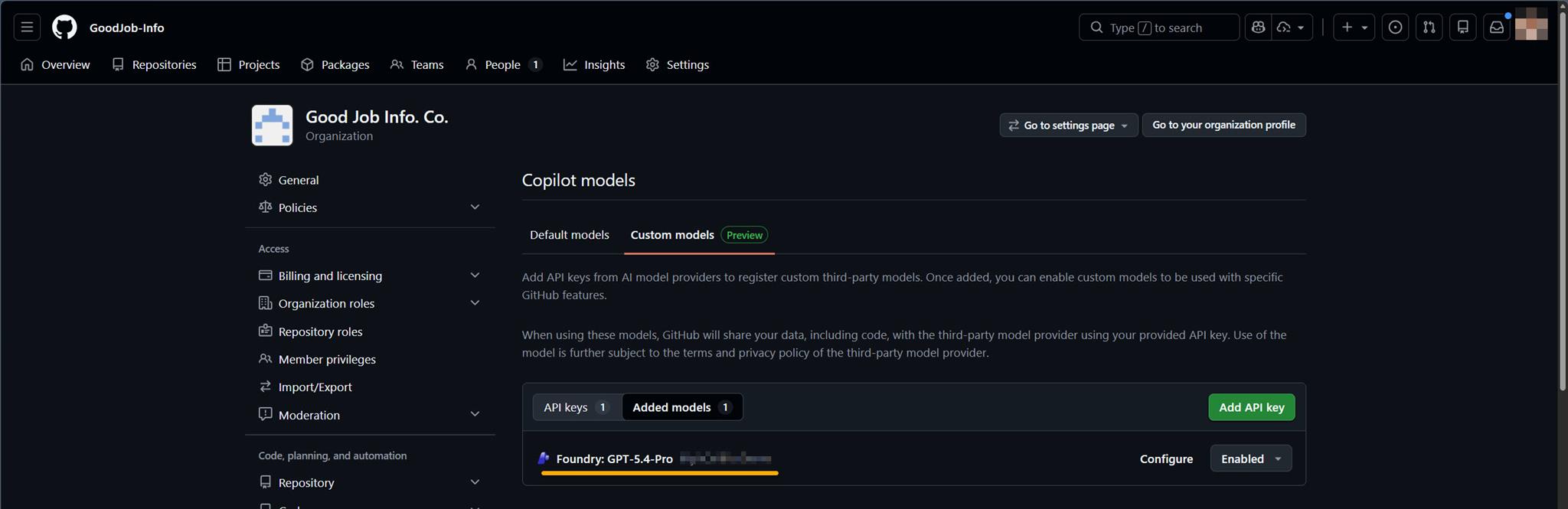
完成後點選 "Save"。
注意到原本顯示的名稱改變 "Foundry: GPT-5.4-Pro" 完成:
趕緊到 Visual Studio Code 當中看看 GitHub Copilot Chat 的串接狀況。
點選 "Manage Models…" 在 "Language Models" 的設定中會看到前面所設定的 "Foundry: GPT-5.4-Pro":
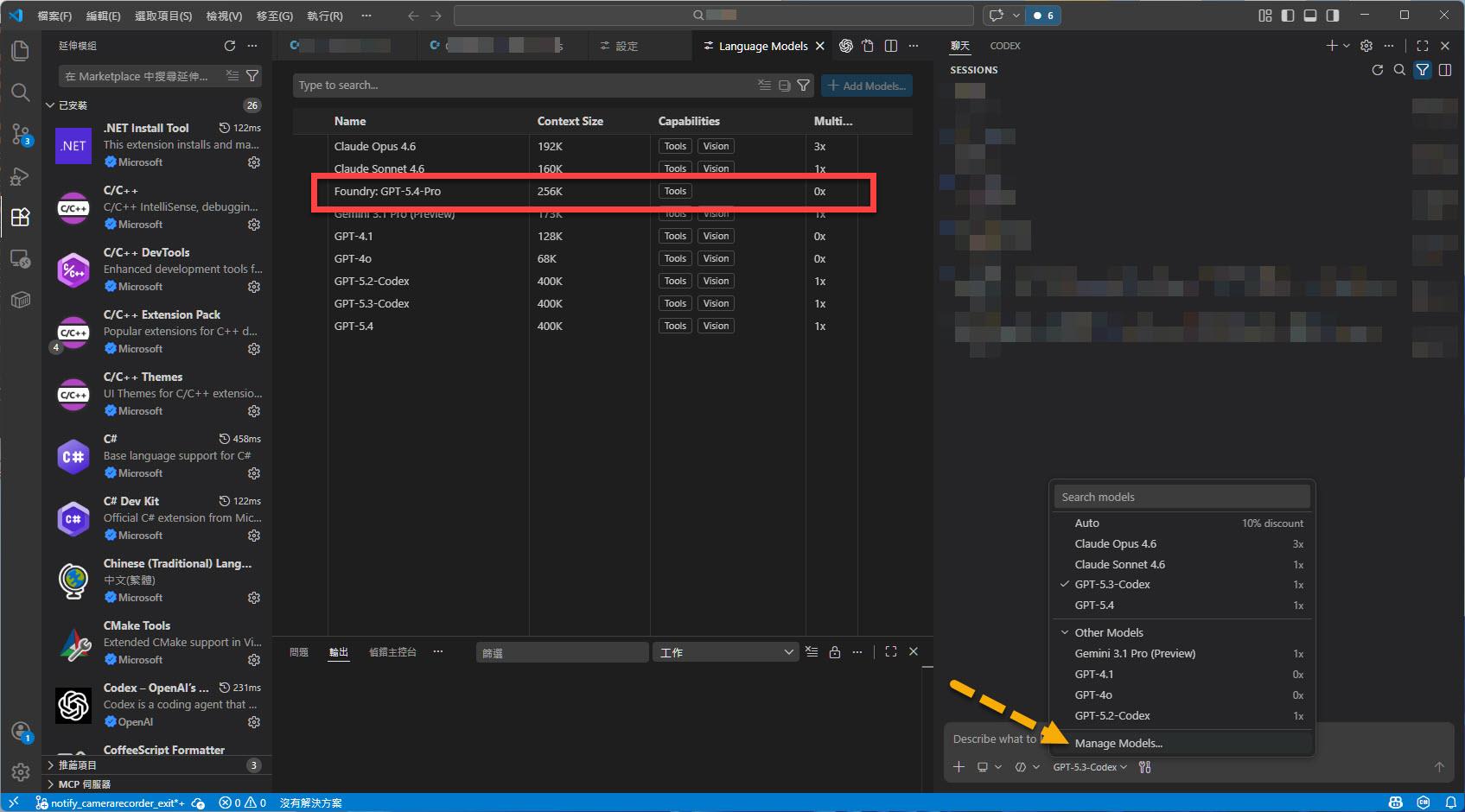
確定在 Visaul Studio Code 有連接上囉!
目前這個時間點 (2026/03/08) 在 Visual Studio 的 Github Copilot Chat 還不支援。
貼心提醒:
此功能還在 Preview 當中,不保證此設定完全正確。
I'm a Microsoft MVP - Developer Technologies (From 2015 ~).

I focus on the following topics: Xamarin Technology, Azure, Mobile DevOps, and Microsoft EM+S.
If you want to know more about them, welcome to my website:
https://jamestsai.tw
本部落格文章之圖片相關後製處理皆透過 Techsmith 公司 所贊助其授權使用之 "Snagit" 與 "Snagit Editor" 軟體製作。