目前手上常用來建置與發佈程式的 CI/CD 服務與架構系統,大略可簡化為 "GitLab 的雲端服務 + 地端主機上所運作的 Docker"。
要完全地端也當然不是不行,畢竟可以自行架設 gitlab 的 Server 在地端的環境內運作。
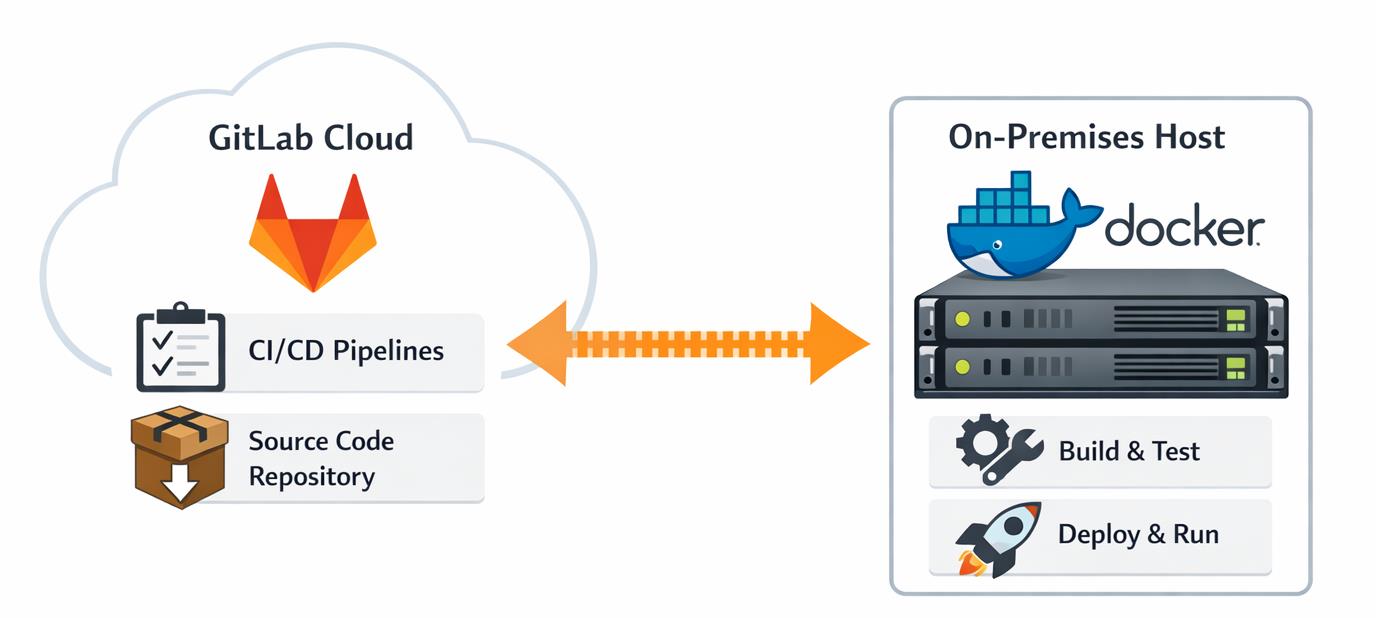
所以目前只要 commit code 並且 push 推到 GitLab 當中之後,在 GitLab 上就會開始執行所設定的 Pipeline。
而在 Pipeline 當中可以設定多個 Stage 並在其中確立各個獨立的 Job,而每個 Job 執行時就透過 GitLab Runner 去跑,舉個例來說:
若 Pipline 設計了三個 Stage:
build (建置)、test (測試)、deploy (部署)。
在其中的 build (建置) 可能因為最終部署的執行環境不同,就需要採取不同的 build (建置) 方式,此時就會設置不同的 Job 去處理該build (建置)。
個人常遇到的情境是根據應用程式最終要部署的環境有:
1. Windows (再分 x86 與 x64)
2. macOS (再分 x64 與 arm64)
3. Linux (再分 x64 與 arm64)
這樣的 2 + 2 + 2 種版本,所以在build (建置) 當中的 Job 的設計就可能至少會有 3 ~ 6 個。
BTW,這當然是歸功於能用同一套 code 就能執行在不同的系統與架構上運作的 .NET。
題外話:
本來從 .NET Framewrok 升級到用 .NET 6 時,就已經完成同一套 code 去跑這樣的流程,並完成相關的建置。
而隨著時間推進,也進行著將 .NET 6 跳級升為 .NET 10 的過程。但運作的裝置端卻仍有只能執行 .NET 6 的系統環境存在,所以建置時要保持著其相容性。
這又是一段很有趣的故事了。
回到前面說的,執行 Job 時會透過 GitLab Runner 去跑,所以要建立 Runners。
請在 GitLab 的 Settings → CI/CD → Runners,點選 "Create project runner":
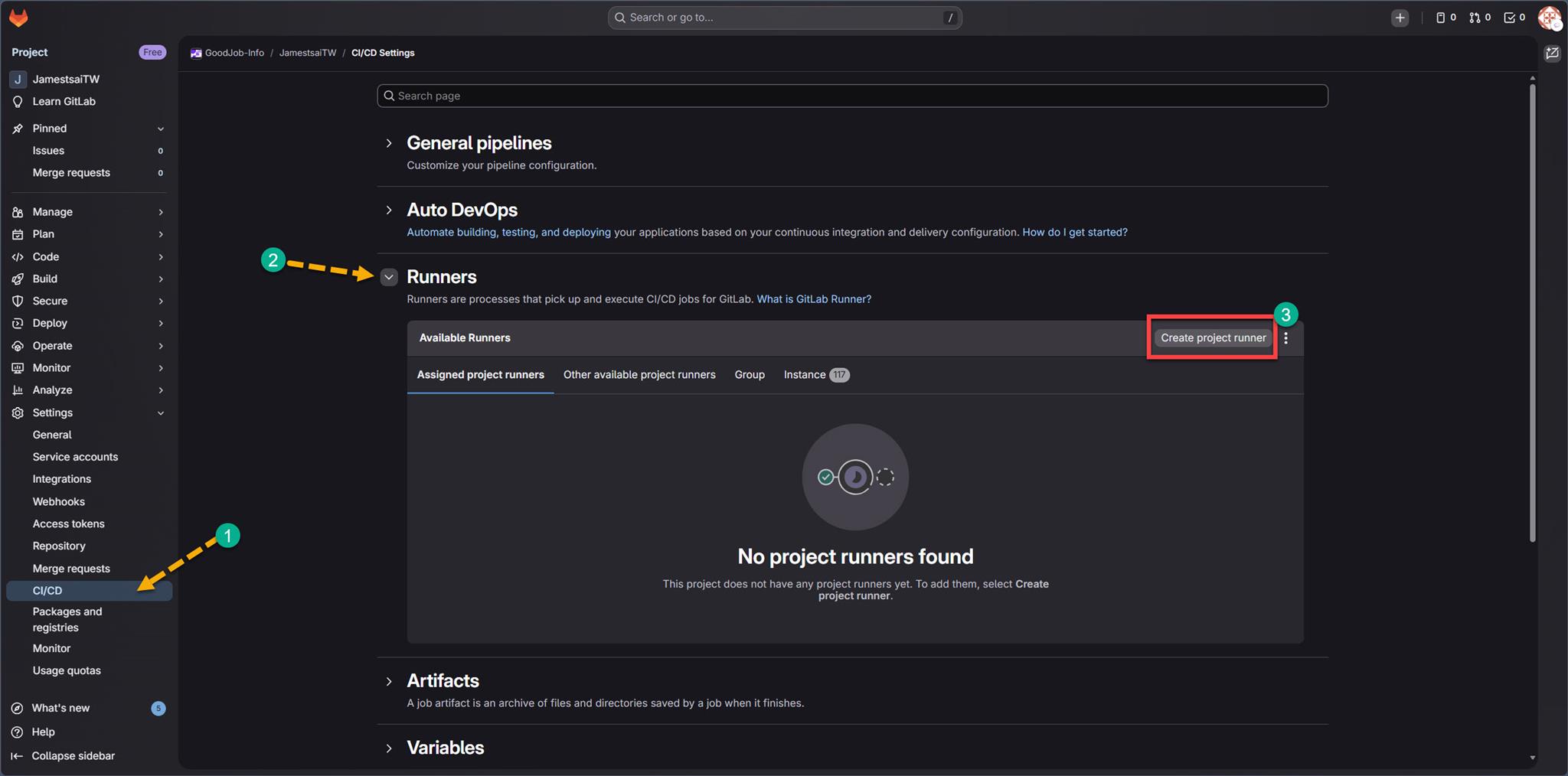
這時候就可以選擇要繼續透過雲?還是要到地端?
當然可以自由的去選擇要透過雲還是到地端,所以在 GitLab 的介面 (以 Gitlab.com 在 2026/02 時的狀況) 當中可以選擇的有:
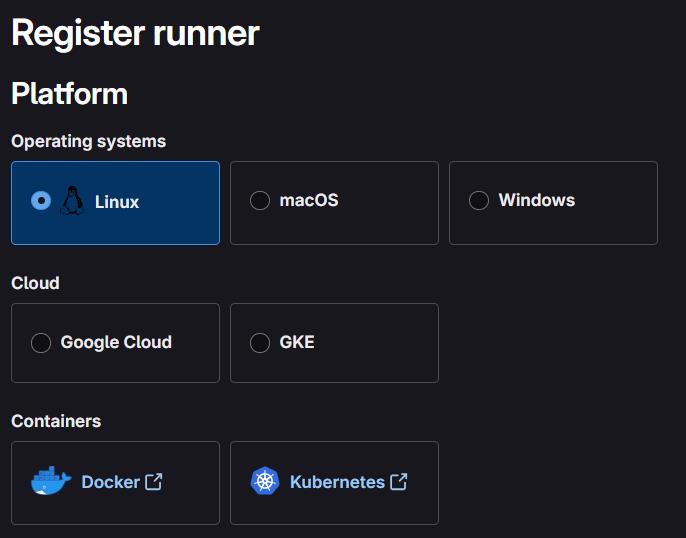
而文章一開始就提到以目前的運用架構是透過 "地端主機上所運作的 Docker" 環境去執行 GitLab Runner 的。
先講,地端主機的運作是透過 WSL 跑 Ubuntu (24.04) 的環境當中,並安裝好 docker-engine 執行的 Docker。
詳細安裝步驟可以參考 ChatGPT 針對 "WSL (Ubuntu) 內自行安裝 docker-engine 怎裝?" 詢問所做的答覆:
https://chatgpt.com/s/t_69a2d181220c8191b54c892f30cbeae8
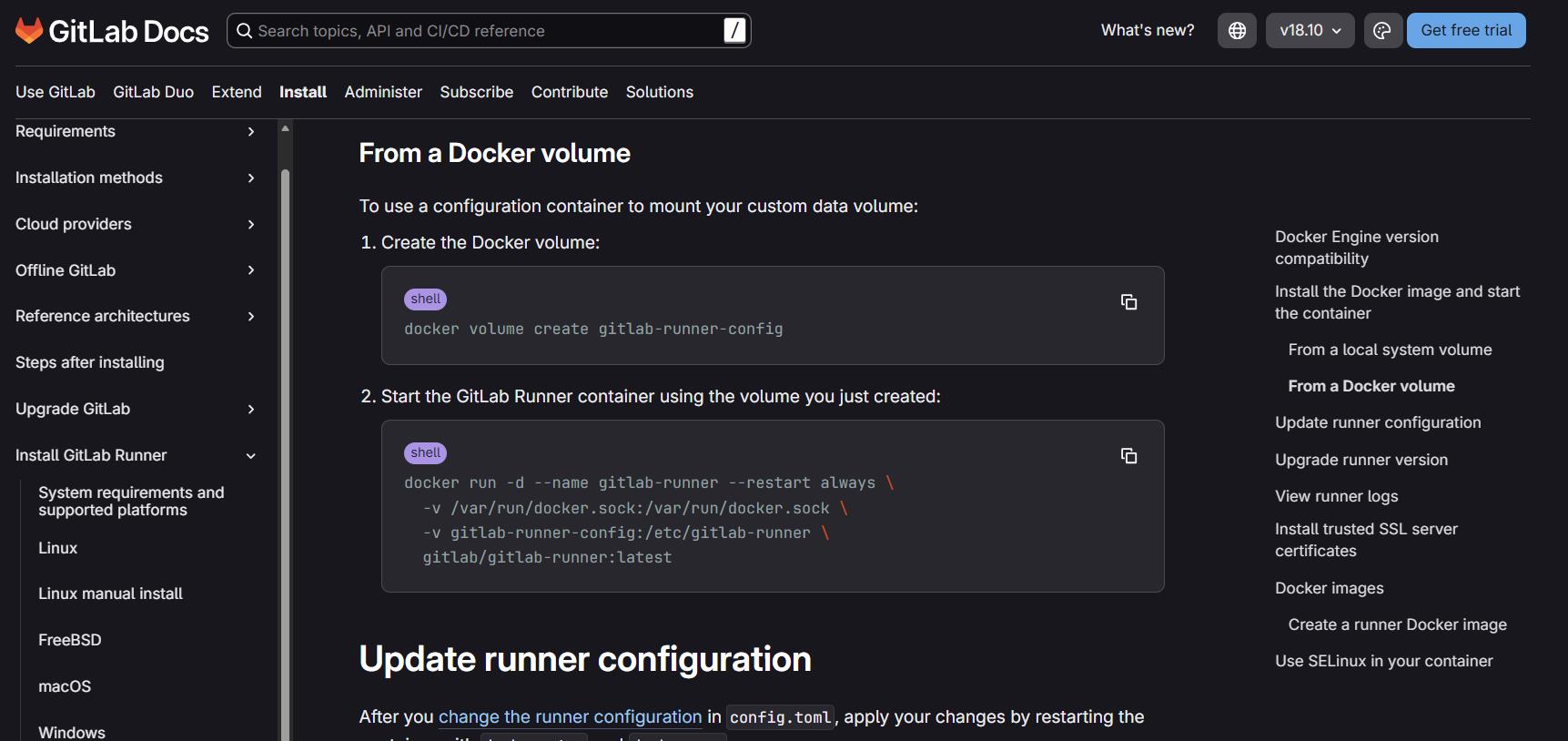
等到上述環境都已經安裝好 docker-engine 後,就按照 GitLab 所提供的文件,在透過 Docker 進行下列動作:
建立 Docker volume:
docker volume create gitlab-runner-config使用 gitlab/gitlab-runner:latest 作為 Container 的 image:
docker run -d --name gitlab-runner --restart always \
  -v /var/run/docker.sock:/var/run/docker.sock \
  -v gitlab-runner-config:/etc/gitlab-runner \
  gitlab/gitlab-runner:latest
所以在 GitLab 的 CI/CD 當中,設定 Runners 的時候在 Platform 仍是選擇 Linux 這個 Operating System,但後續的處理上就直接視作一種 Containers 採用 Docker 來設定。
GitLab 的文件就有說明,所提供的 gitlab/gitlab-runner:latest 是基於 Ubuntu 所建置的:
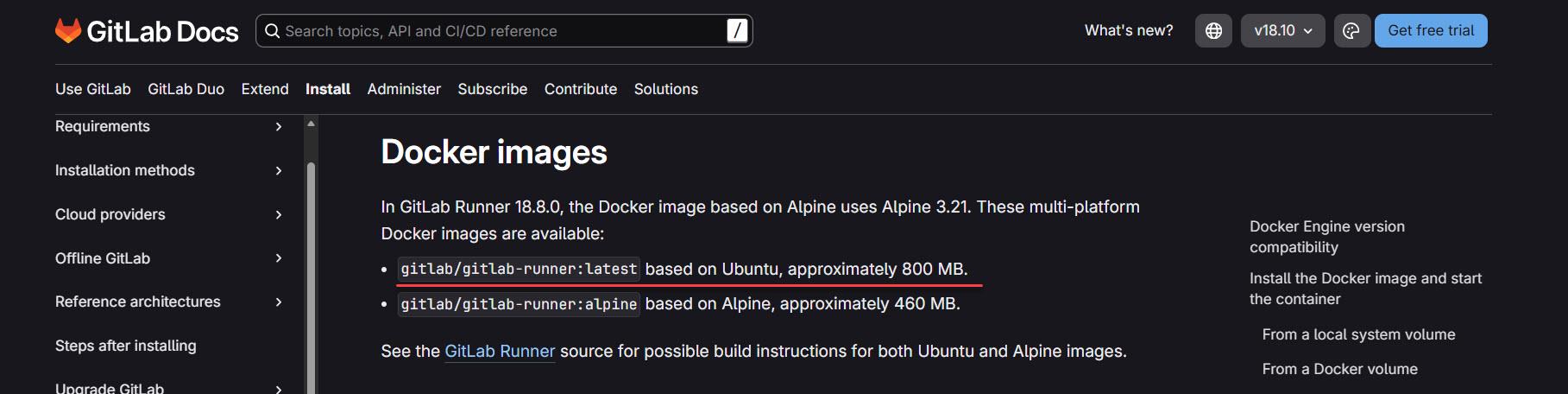
注意:
按照此設計,就不要在 WSL 的 Ubuntu 當中安裝 gitlab-runner 這程式,直接透過 gitlab 所提供的 image 去跑 Container 註冊 gitlab-runner 就好。
可能心中有幾個問題:
- 那直接把 GitLab Runner 裝在 Linux、macOS 或 Windows 當中行不行?
可以,GitLab 官方都有直接給三個 OS 相對的安裝方式。
- 那在 Windows 上安裝 Docker Desktop 後的 Docker 呢?
那就走 Containers 的 Docker 方式,考慮到 Docker Desktop 商業使用的授權問題,請慎重。
接著就是透過在 Register runner 當中顯示的 "token" ,註冊 GitLab Runner 到 GitLab.com (或是自建的 gitlab 的 Server) 當中:
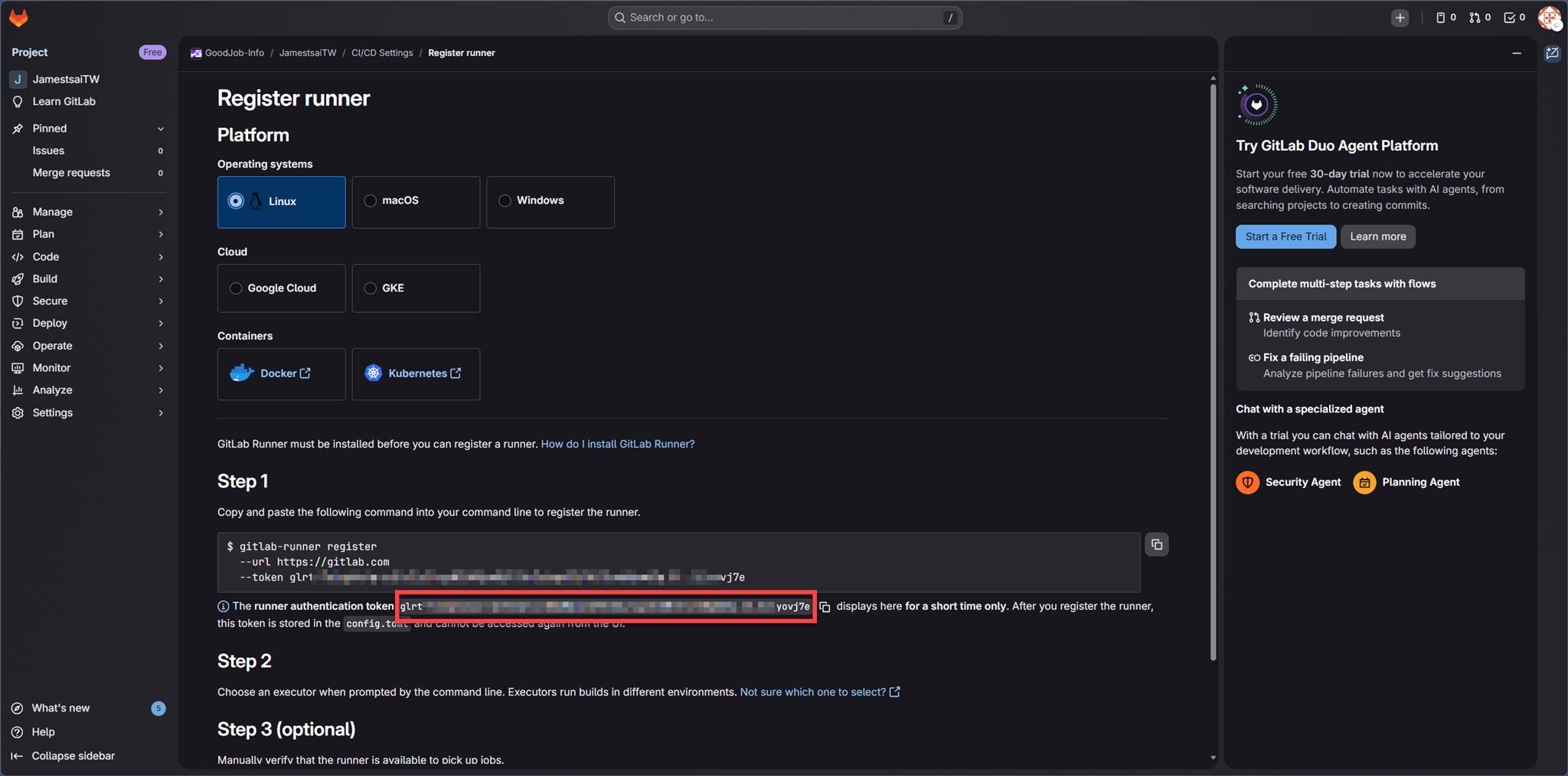
回到 WSL 的 Ubuntu 當中,透過下列指令:
docker exec -it gitlab-runner gitlab-runner register分別回應下列問題:
- Enter the GitLab instance URL (for example, https://gitlab.com):
https://gitlab.com/ - Enter the registration token:
輸入上圖畫面紅框的 token 資料。 - Enter a name for the runner. This is stored only in the local config.toml file:
自行隨意輸入,不想輸入直接 Enter 也行。 - Enter an executor: docker, kubernates, docker-autoscaler, docker-windows, docker + machine, instance, custom, shell, ssh, parallels, virtualbox:
docker - Enter the default Docker image (for example, ruby:3.3):
alpine:latest
上述的 1. 則可以選擇連線到自己架設的 gitlab server 所能連結到的網址,而 5. 可以之後再透過 .gitlab-ci.yml 的設定中覆蓋,提供下圖做為設定的範例參考:
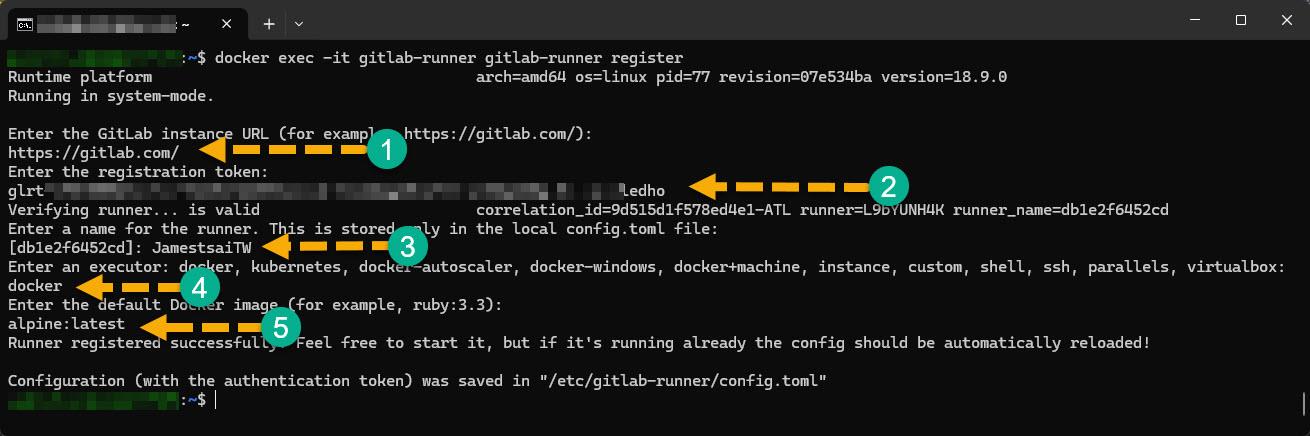
若正確,就會回應下列資訊:
Runner registered successfully. Feel free to start it, but if it's running already the config should be automatically reloaded!

Configuration (with the authentication token) was saved in "/etc/gitlab-runner/config.toml"
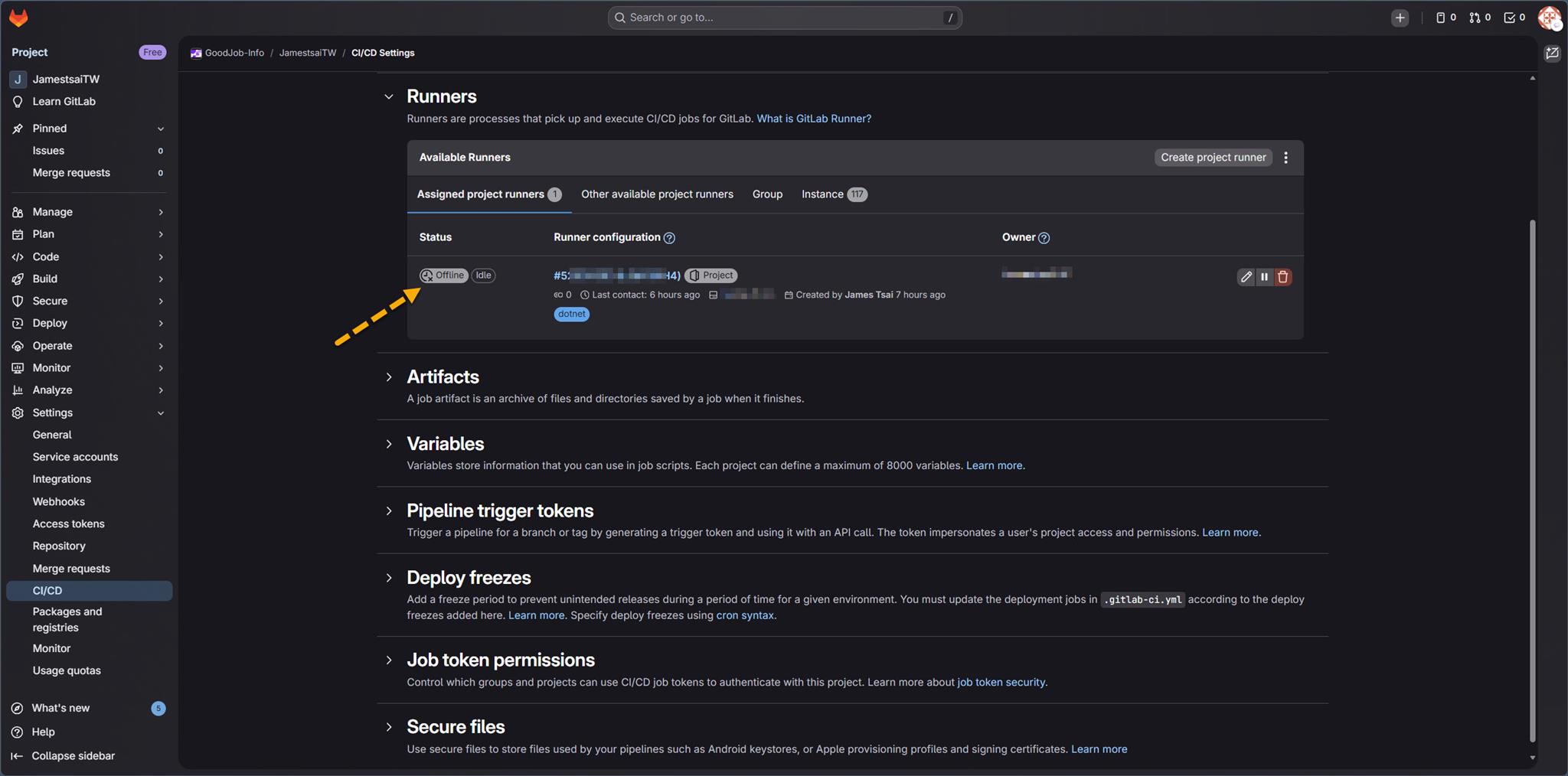
此時再看看 GitLab 在 CI/CD 當中的 Runners 狀態:
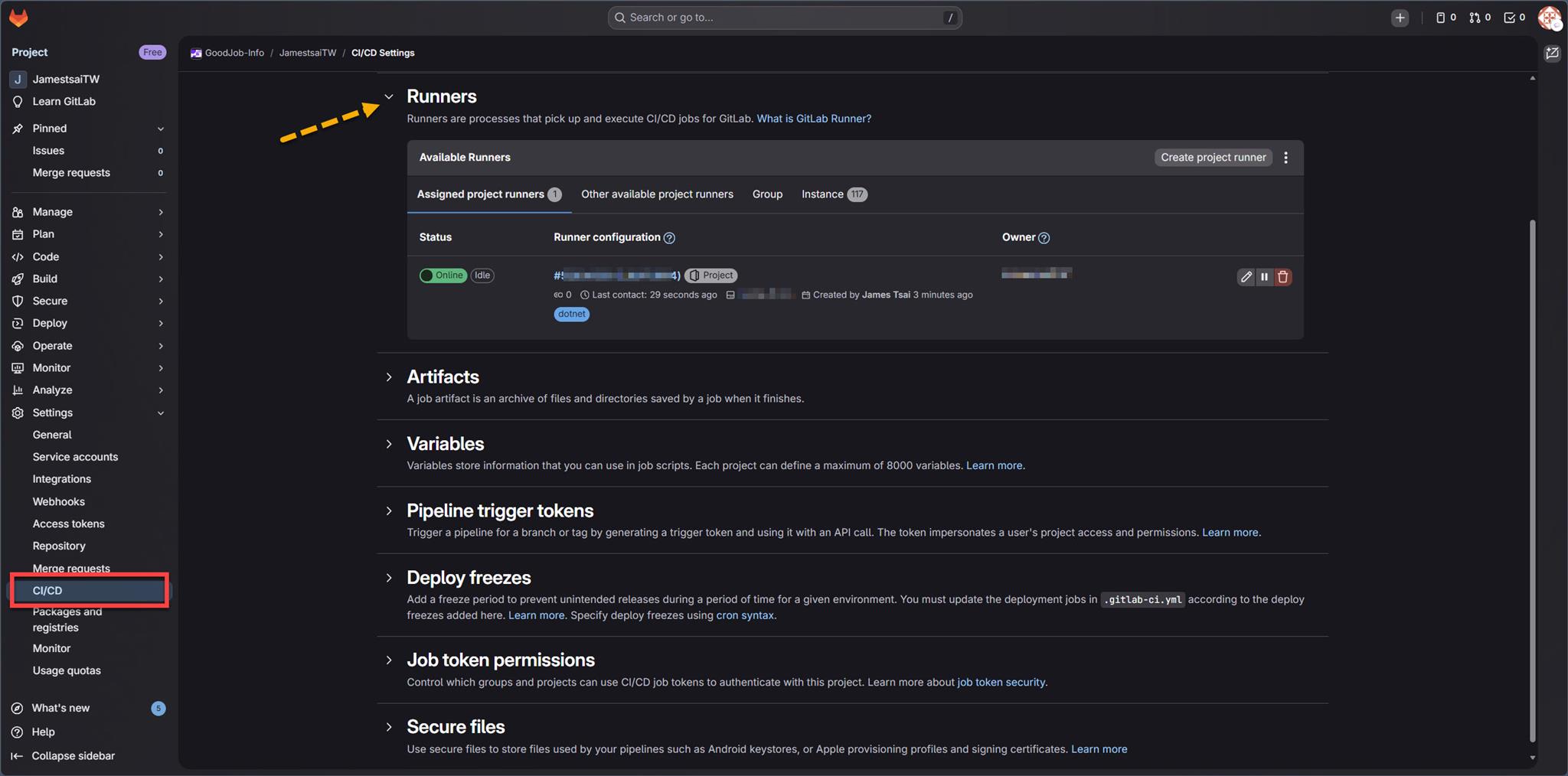
應該 Status 就會亮著 "Online" 囉!
對照一下 Status 亮著 "Offline" 的樣子 (故意把該 WSL 中的 Docker 關掉。好孩子,不要在正式環境中這樣亂玩喔!)。
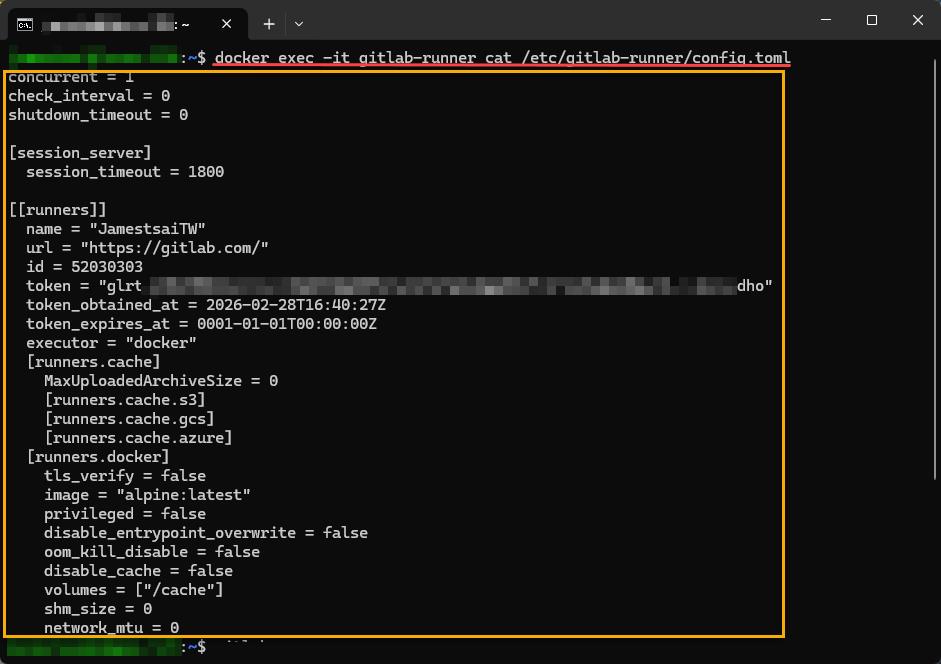
回到 WSL 的 Ubuntu 當中,透過下列指令:
docker exec -it gitlab-runner cat /etc/gitlab-runner/config.toml也就可以看到前述的 config.toml 設定檔案的內容:
好了,所以環境設定都完成了對吧?
應該吧🙂
下一篇: 在 GitLab 執行的 Pipeline 運用 Docker 環境出現靈異路徑問題 (II)
I'm a Microsoft MVP - Developer Technologies (From 2015 ~).

I focus on the following topics: Xamarin Technology, Azure, Mobile DevOps, and Microsoft EM+S.
If you want to know more about them, welcome to my website:
https://jamestsai.tw
本部落格文章之圖片相關後製處理皆透過 Techsmith 公司 所贊助其授權使用之 "Snagit" 與 "Snagit Editor" 軟體製作。