文章內容僅為個人實驗測試紀錄,不建議使用在生產環境。
短期內有效,未來可能因相關的設計改變,如:API 調整 而失效,請斟酌。
適用的 Claude 產品有:
1. Claude Code (CLI)
2. Visual Studio Code 的 Claude Code extension
以上注意事項請知悉。
以上注意事項請知悉。
如果真要推薦近期偏 AI-driven 而生的 IDE 開發工具,目前比較有 "獨立" 精神的是 OpenCode "Desktop"。
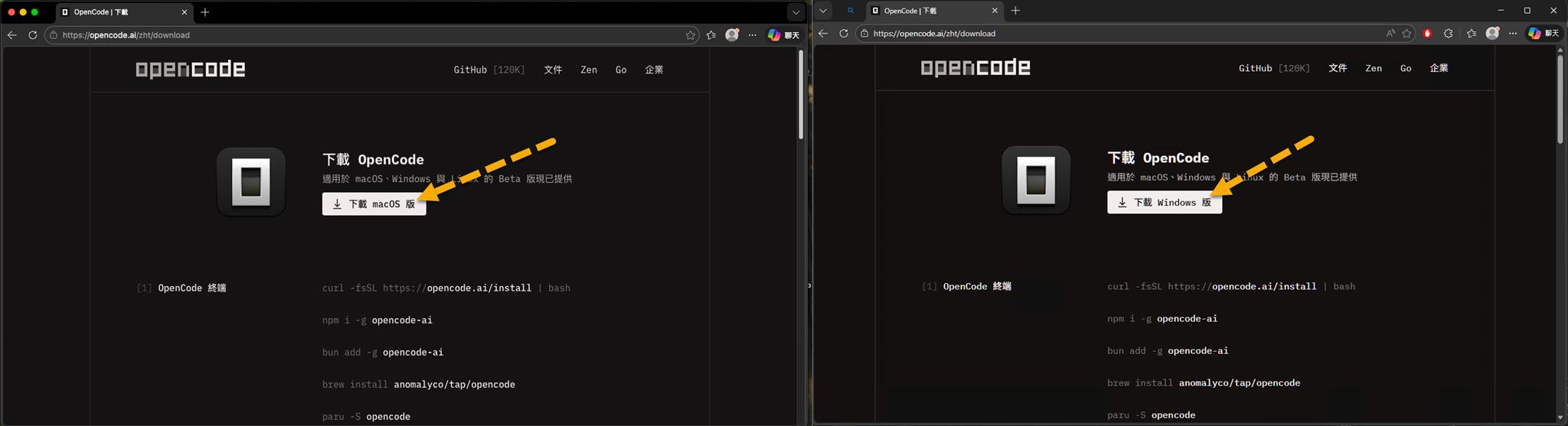
雖然個人覺得 OpenCode 是 CLI 主打,但 OpenCode 後來也推出了 OpenCode Desktop 可以直接在 macOS / Windows 安裝使用:
Microsoft Teams 一直有著很令人詬病的兩大問題:
似乎在近期似乎有改善多了?
不過…這兩個問題不是這篇文章想討論的。
由於近期微軟總部想透過 MVP 們的社群力量來辦點推廣 GitHub Copilot 的活動:GitHub Copilot Dev Days。
就起心動念想說響應一下,就來搞一場 GitHub Copilot Dev Days | Taipei 的 線上 活動。
在 GitHub Copilot (以 2026Q1 這時間點瞭解到) 所設計的各種 Plans 來看,在使用上分成兩大區塊:
如果你就是只有一個人,基本上都是 Individuals (個人/獨立個體商)。
這樣的使用情境大概就是,想要自己放飛自我寫程式或是整間公司就只有你一個人,不用跟其他任何 "人類" 或 "Agent" 有交流與互動就能完成工作,那可以選的 Plan 有:
這一系列共 30 篇文章,記錄了一段從產品需求出發,逐步走向跨平台影音應用整合的技術歷程。
表面上看起來是在談 GStreamer、.NET、Avalonia UI、Windows、Linux、Docker 與 GStreamer-Sharp 這些很混雜的技術觀點,但真正貫穿全系列的核心問題其實很明確:
當一套長年在 Windows 環境運作的產品,必須逐步邁向 Linux 與跨平台桌面應用時,開發團隊該如何面對影音需求、原生函式庫相依、部署限制,以及記憶體與相容性等實際問題。
所以…
這並不只僅僅是一組整理成功結果的技術文章,也是一份有完整脈絡的產品研發、維護的工程紀錄。
隨著作業系統的升級或發展過程,在當前安全威脅日益高張的年代,當然作業系統的相關安全性與設計也會隨之強化。
硬體的驅動程式是會跟作業系統 (OS) 直接作動的,所以從安全性的角度來看,隨著時間的推進而造成一些外部裝置的驅動程式過於老舊,沒有跟著新版作業系統的安全性設計而改版,產生與新版作業系統發生不相容問題,也不難理解。
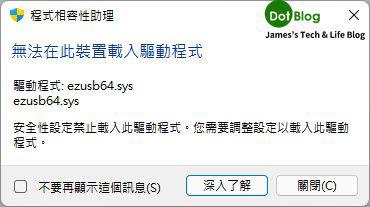
但是就這樣把問題都推給微軟,說通通都是 Windows 11 的錯,這就很難令人理解了🤔
反觀果粉就不會有這種心態…很妙😏
一次次在看文件或文章時,常會發生 "英文 → 繁體中文" 的「翻譯結果看得懂、但很奇怪」的感覺,尤其是從 LLM 的 Gen AI 盛行之後,更是有這種芥蒂感在看文件或文章時不斷的出現。
因此想了一下有沒有更好的處理方式。
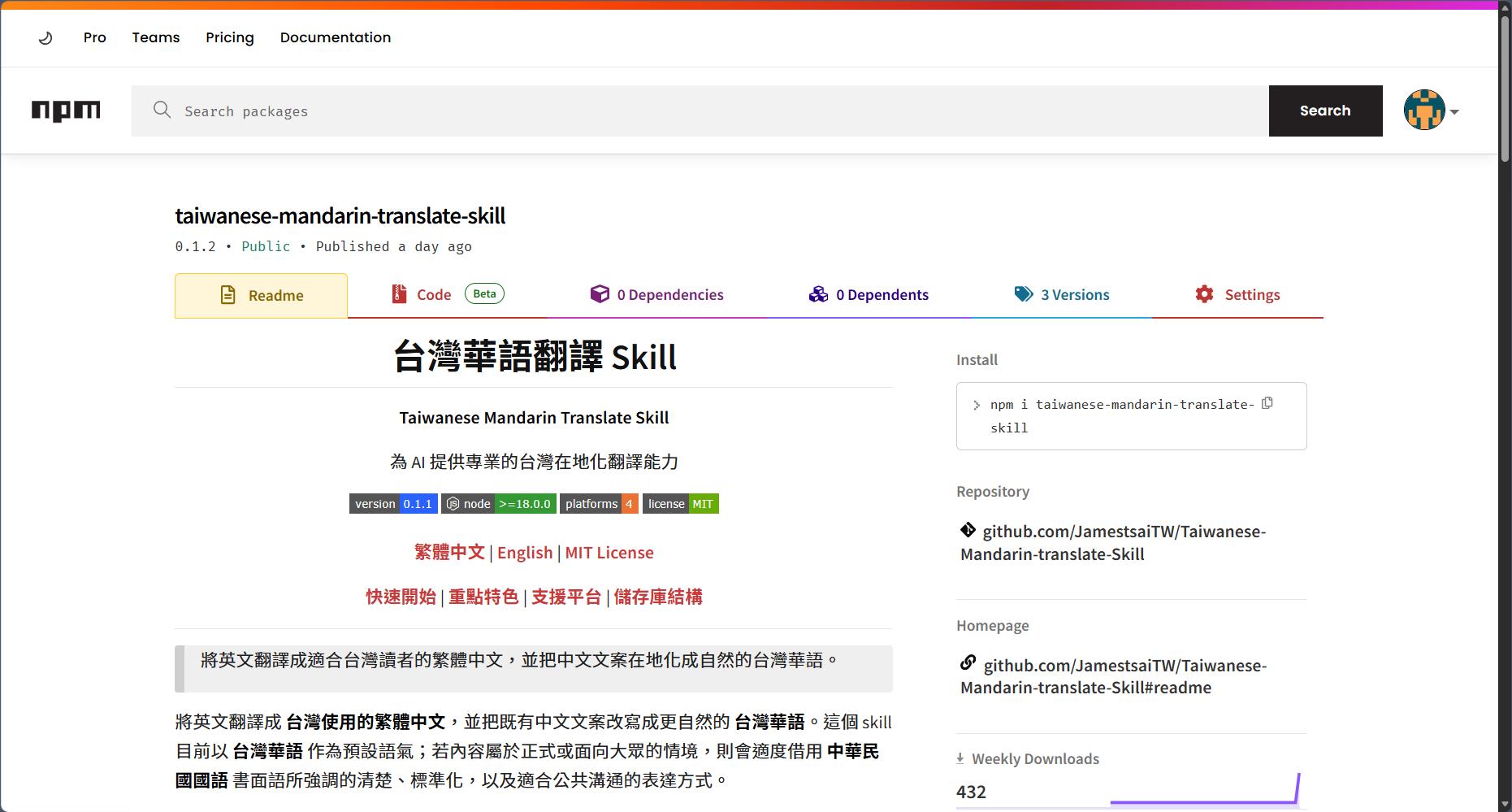
不單單只有純粹的把英文翻成中文,而是先定義台灣繁中在不同語境下應該有的語感與判準,這才催生了 Taiwanese-Mandarin-Translate-Skill (台灣華語翻譯 Skill) 這個 Skill :
換電補能量,生活加點小好康。
"Gogoro X 全聯 換電任務解鎖" 活動詳情請見官方活動網頁:
https://promotion.gogoro.com/tw/pxmartswap/
(圖片取自 Gogoro 官網活動頁面)
因為 Windows 10 IoT Enterprise 的 2016 LTSB 推出至今將滿 10 年了,除了在今年 7/31 會 EOL 之外,也將會在今年的 10/13 正式 EOS。
手上的機台還是運作 Windows 10 IoT Enterprise 的 2016 LTSB 的怎辦呢?可以的話請把目光放向 Windows 11 IoT Enterprise LTSC 會是最長治久安的打算:
| - - - - - - | Win10 IoT Enterprise | Win11 IoT Enterprise | |
|---|---|---|---|
| - - - - - - | 2016 LTSB | 2021 LTSC | 2024 LTSC |
如果你今天是 .NET 開發人員,那使用 Visual Studio 應該不陌生;如果你今天是開發人員,那使用 Visual Studio Code 應該不陌生。
自 Visual Studio 2026 起,Visual Studio 幾乎可以算是直接內建 "GitHub Copilot Chat":
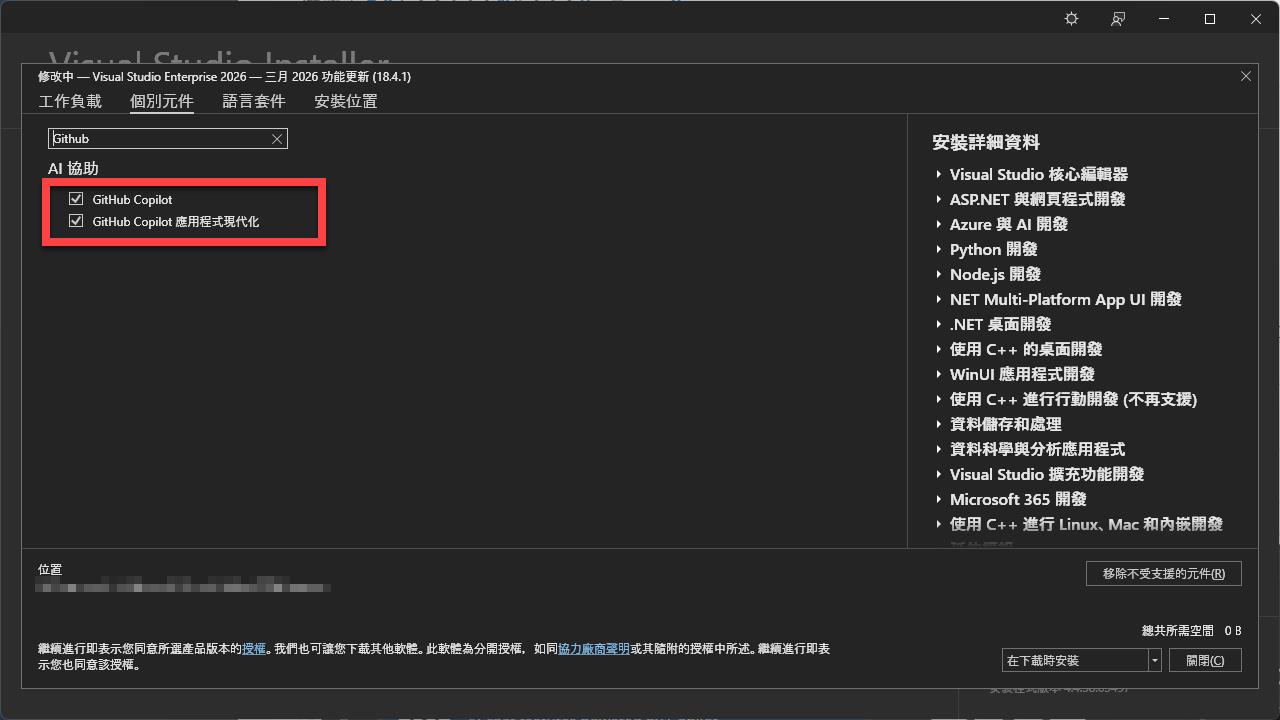
當然 Visual Studio 2022 也能裝 GitHub Copilot Chat 的,但不知道是不是個人的心理作用,感覺用起來沒有 Visual Studio 2026 的順。
Visual Studio Code 也不用太多說什麼,在 Visual Studio Code 的延伸模組的市集當中搜尋一下 "GitHub Copilot Chat" 就可以安裝。
在 AI 流行起來後,CLI (Command Line Interface) 又躍升為比較主流的操作方式,所以如果只能在 IDE 當中操作 GitHub Copilot 就似乎稍嫌不足。
GitHub Copliot CLI 的安裝當然也就要介紹一下囉!
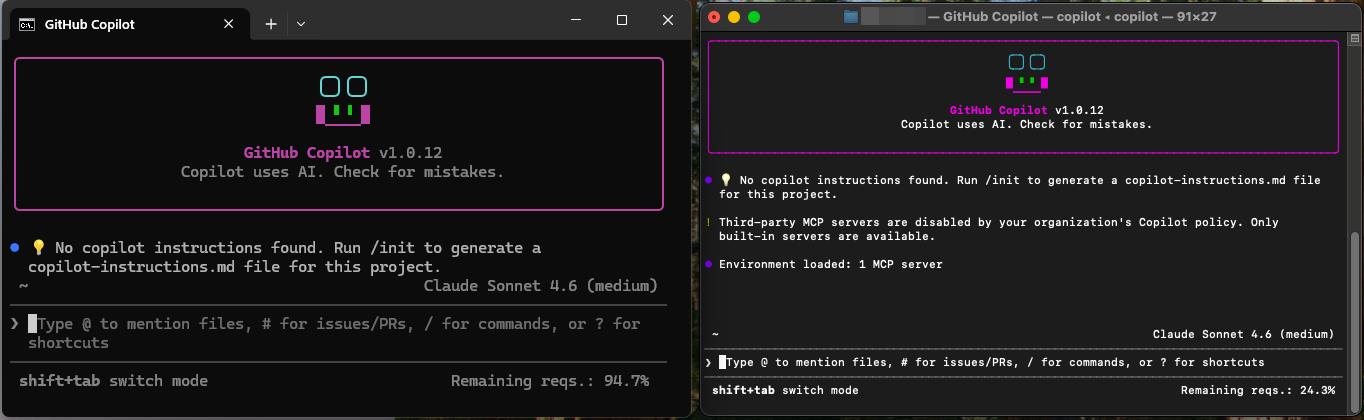
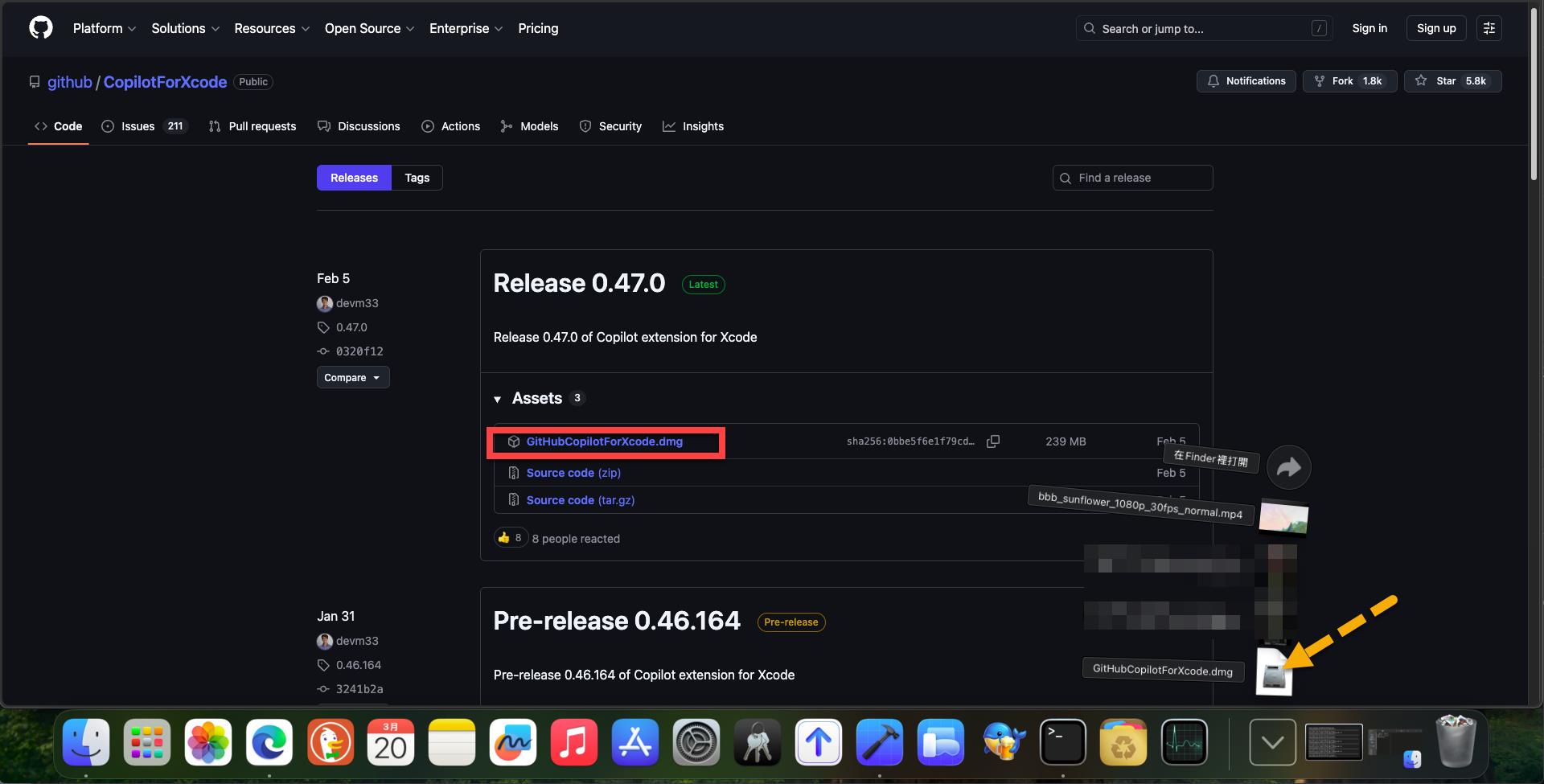
截至目前 (2026Q1) 為止,在 macOS 上的專武 IDE:Xcode。
要幫忙上 Buff (GitHub Copilot) 的方式,仍得靠傳統的 *.dmg 安裝方式來疊:
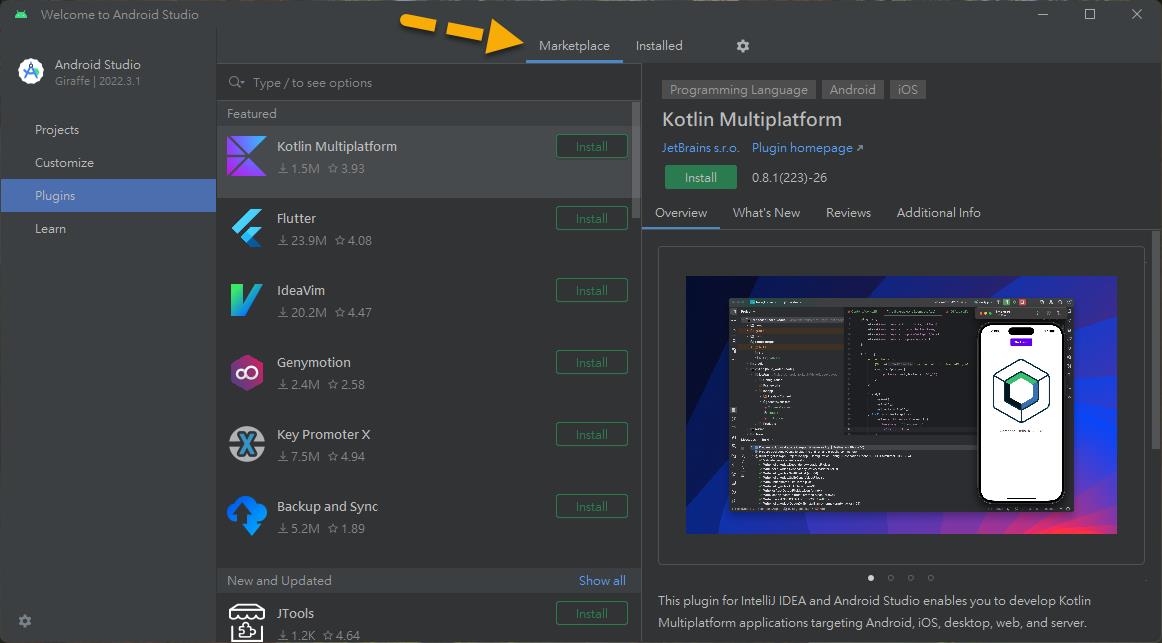
已經有一段時間沒開 Android Studio 起來用,看到 GitHub Copilot 有說可以在 Android Studio 當中使用 GitHub Copilot Chat 的 Plugin (對,已經腿很久了),就不假思索的打開電腦上已經安裝的 Android Studio 來試試看。
在 Android Studio 中點開 Plugins 找到 Marketplace:
想要讓 GitHub Copilot 串其他 AI 平台的 model 到 GitHub Copilot 在 Organtization 來使用,行不行?
行,當然行!
看 GitHub 設定 API key 的選項:
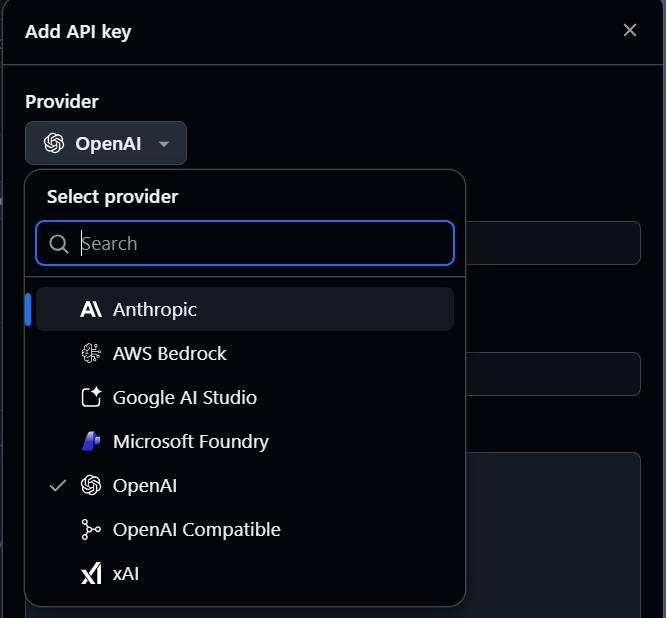
基本上主流的幾家 AI 平台都支援了!
GetCreationTimeUtc / GetCreationTime 其實都會有同樣的問題。
更正確地說 .NET 對檔案的 CreationTime 在 Windows 與 Unix-like (macOS、Linux…等,後面都統一稱呼 Linux) 的 OS 上定義不同。
"對 GitHub 的 Organization 中的成員設定 GitHub Copilot : 解釋篇" 所提到的 Organization 請理解為:
群體
這個 "群體" 可能會是:
…等這樣的詞彙解釋。
在 AI 盛行起來後,在數位世界中的任何一個 "單位" 中有可能存在多個 "人類" 或 "Agent" 的個體,那就適用這個 "Organization" 的觀點。
目前手上常用來建置與發佈程式的 CI/CD 服務與架構系統,大略可簡化為 "GitLab 的雲端服務 + 地端主機上所運作的 Docker"。
目前手上常用來建置與發佈程式的 CI/CD 服務與架構系統,大略可簡化為 "GitLab 的雲端服務 + 地端主機上所運作的 Docker"。
在 GitLab.com 申請好的帳號與建立第一個專案的 Repo 之後,就可以進行 Pipeline 的使用。
根據 ChatGPT 對 GitLab 中的 Pipeline 其定義是:
在程式碼變動時,自動執行 CI/CD(Continuous Integration / Continuous Delivery)流程。
技術一點的說:
當程式碼有異動的時候時,GitLab 會依照 .gitlab-ci.yml 的設定,根據 Pipeline 中所設計的 Stages (階段),如: 建置、測試、部署…等,來自動化的執行一連串 Jobs (工作)。
在使用 GitLab 進行專案管理時,透過範本建立專案可以大幅減少初始化設定的時間。
這篇來介紹一下如何在 GitLab 中使用 .NET 專案範本 (dotnet template) 建立第一個專案,從建立 GitLab Project、套用範本,到完成基本的專案結構與設定。
這樣可以快速建立標準化的 .NET 專案環境,為後續的版本控制與 CI/CD 自動化流程奠定一定程度的基礎。